¶ Wheels Next Door - Help Center
Earn an income from home. Rent the vehicle next door and keep the money in our community
¶ COMMON QUESTIONS
Find answers to common questions
¶ ELIGIBILITY CRITERIA
¶ To become a member you must:
- Be between 18 and 85 years old (refer to below if under 21)
- Have no recent license issues, major traffic violations, or alcohol/drug-related incidents in the past 5 years
- Not have any current or pending criminal convictions
- Possess a full unrestricted license (no provisional plates)
- Have a suitable credit or debit card with adequate funds for the excess for the duration of time that you are borrowing a vehicle, as well as any trip pre-payments or deposits
- A credit check will be conducted during the sign-up process to ensure a satisfactory credit history.

¶ UNDER 21?
- If you fall within the 18 to 20 age range, you're welcome to join as long as you possess a full license. Any provisional Licenses or P-plates can't be accepted at this time. If you're under 21, your vehicle booking options in the City of Sydney are limited, but once you reach 21, you'll have access to our complete range of vehicles nationwide.
- Even if you're on your P plates and interested in renting a vehicle, you can still become a member. Refer to the 'P-plates or provisional licences' section below for additional details..

¶ NOT AN AUSTRALIAN CITIZEN?
- Feel free to become a member. Check out our details for international drivers .
¶ P-PLATES OR PROVISIONAL LICENCES
- The damage and loss coverage is applicable exclusively to fully licensed drivers. If you currently hold a provisional license or are on your P plates (red or green), membership is not available at the moment. Once you transition from P plates to a full license, you become eligible to join and book vehicles.
- If you're on your P plates and interested in renting a vehicle, you can still join, but borrowing other people's vehicles won't be possible. If you wish to list your vehicle for others to rent, submit an application Apply to list your vehicle and we'll provide details on the process.

¶ ONLY HAVE A DIGITAL LICENCE?
- Regrettably, we are unable to validate digital licenses, so we can only accept physical licenses. All drivers are still issued physical licenses, and Service NSW advises carrying them to prevent any inconvenience.
- This requirement is specific to the application process. Once approved as a member, drivers can use their digital license where allowed by state laws.
¶ CONTINUING ELIGIBILITY DEPENDS ON YOUR DRIVING RECORD
- Should you be part of a traffic incident or violate traffic rules during your membership, it's essential to inform us or cancel your membership. In case of a damage claim, we will ask for a copy of your official driving record. If it's discovered that you haven't provided complete and relevant information about your driving history, coverage may not apply.
¶ REGISTERED VEHICLE REQUIREMENTS
- The vehicle will need to be covered by a comprehensive insurance provider for the vehicle listed. This will be known as Owner’s Comprehensive Insurance by the Renter. Covering damage, theft, and public liability of the vehicle while in use by the Renter. The public liability known as CTP Insurance for cars, vans, trucks, motorbikes, scooters, and this needs to be upgraded to vehicle hiring or sharing (supplied by insurance firms like Alliance). CTP for mobility scooters, wheelchairs, etc., that have a registration number plate is covered for 3rd party and at no cost to obtain from the transport board. This can be obtained from most insurance companies. This type of insurance is compulsory in Australia and it covers for personal injury caused by a vehicle accident.
- Public Liability Means that the vehicle is covered only for third-party injury. This is known as CTP public liability. For trailers, a separate CTP cover is not needed because the towing vehicle’s CTP cover is adequate.
- No Insurance Means if your vehicle has no 3rd Party or Comprehensive insurance cover it will be flagged as ‘No Insurance’ uninsured vehicle and Renter will be notified. The Renter takes full liability in an incident if the fault of the accident is that of the Renter.
- Comprehensive insurance can be taken for most types of vehicles. If your vehicle has no CPT or Comprehensive insurance, it will be flagged as an “uninsured” vehicle and the Renter will see this in the listed vehicle profile. Please contact an insurance broker if you need to find vehicle insurance or public liability insurance kindly contact the Insurance Council of Australia. Here are other major Australian insurers that cover cars that are mostly used for personal use, but are also rented out via Wheels Next Door, without any additional premium payable: • AAMI • APIA • GIO • NRMA (including SGIO and SGIC) • RACV (Victoria only) • Suncorp. Every insurer has its own policies, so contact your insurer or check your PDS to see if sharing your car will impact your current insurance. When requesting a policy quote, mention that you primarily use your car for personal use and occasionally share it on our platform.
¶ Insurance in Australia
¶ Comprehensive Insurance:
¶ Note:
¶ HOW-TOS
Our How-Tos provide step-by-step instructions on common tasks and processes. Whether you need help setting up a device, troubleshooting an issue, or understanding a feature, our guides will walk you through each step clearly and concisely.
¶ NOTE - *The pictures of the relavent sections are attached here in order
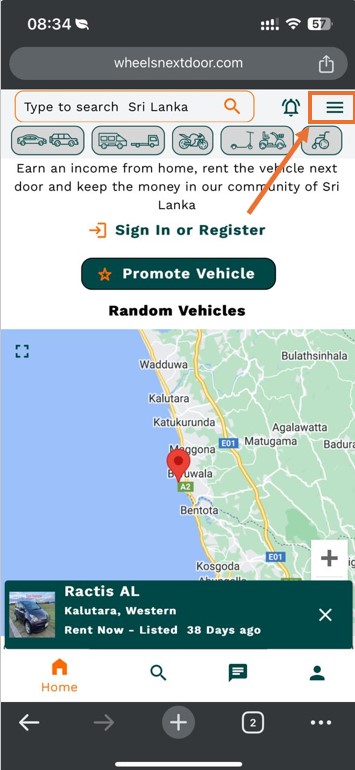
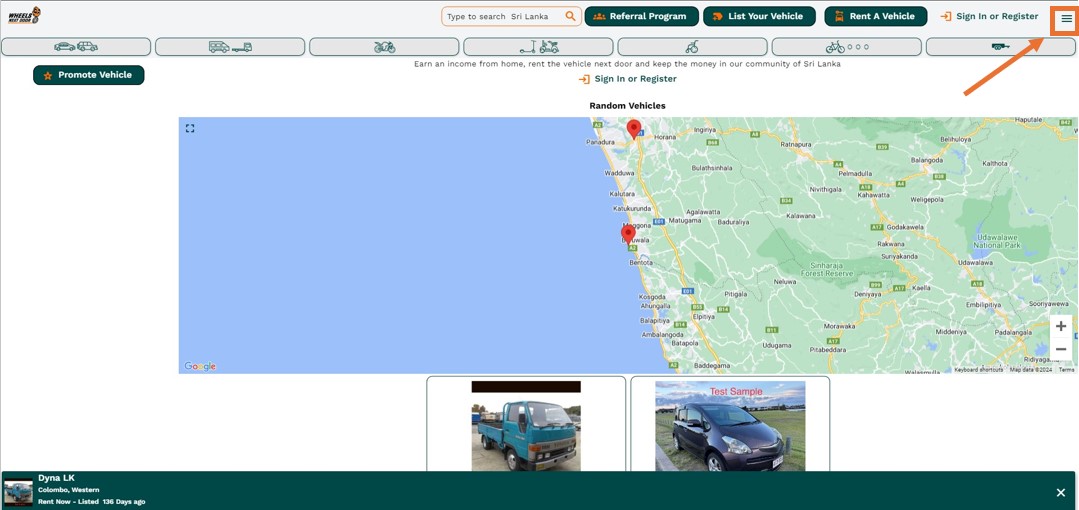
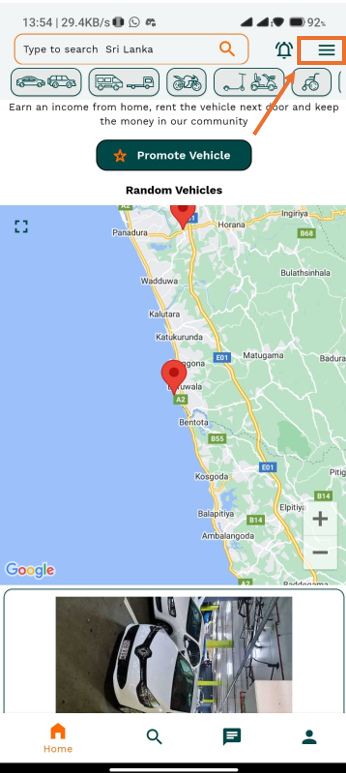
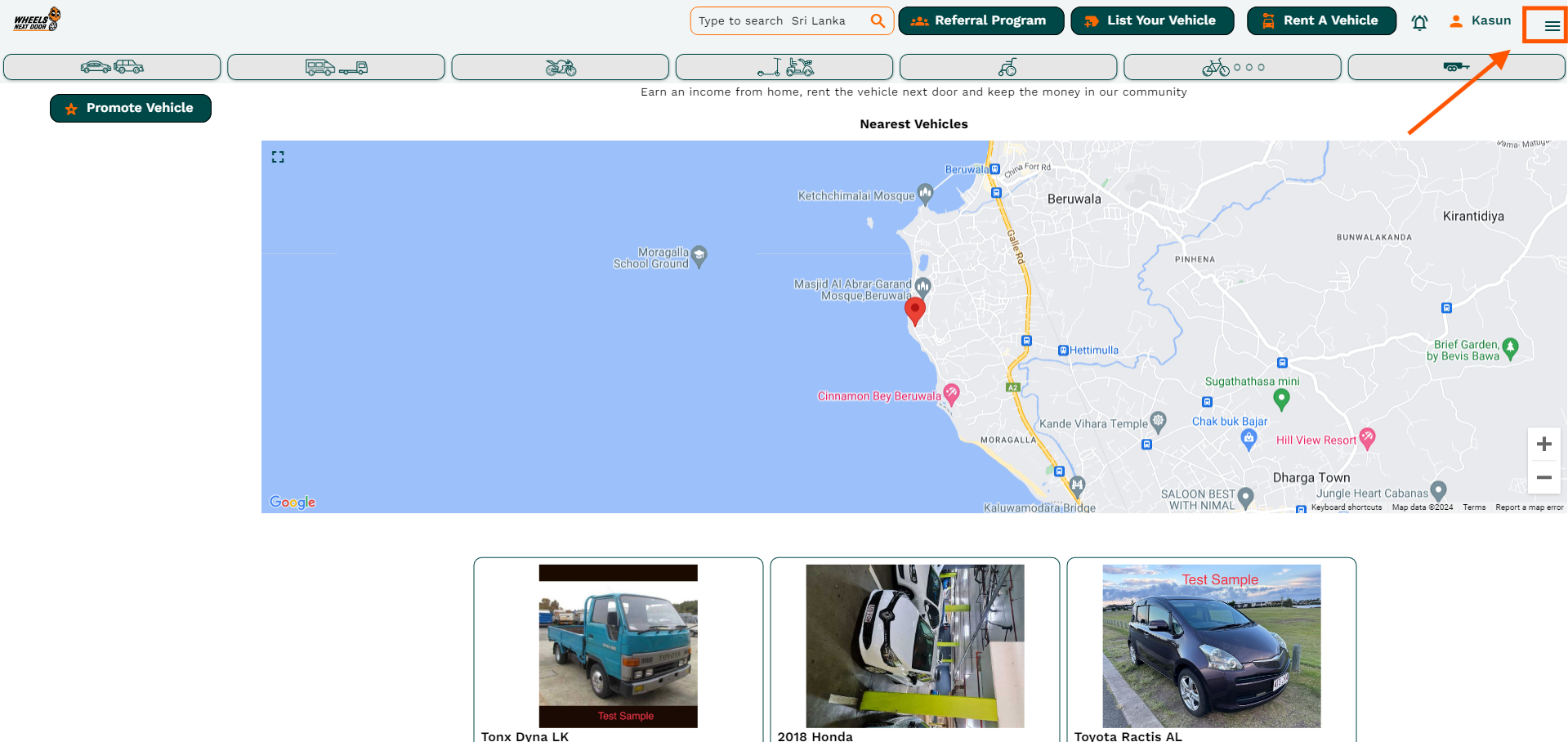
¶ Home page
- This is the Home Page.
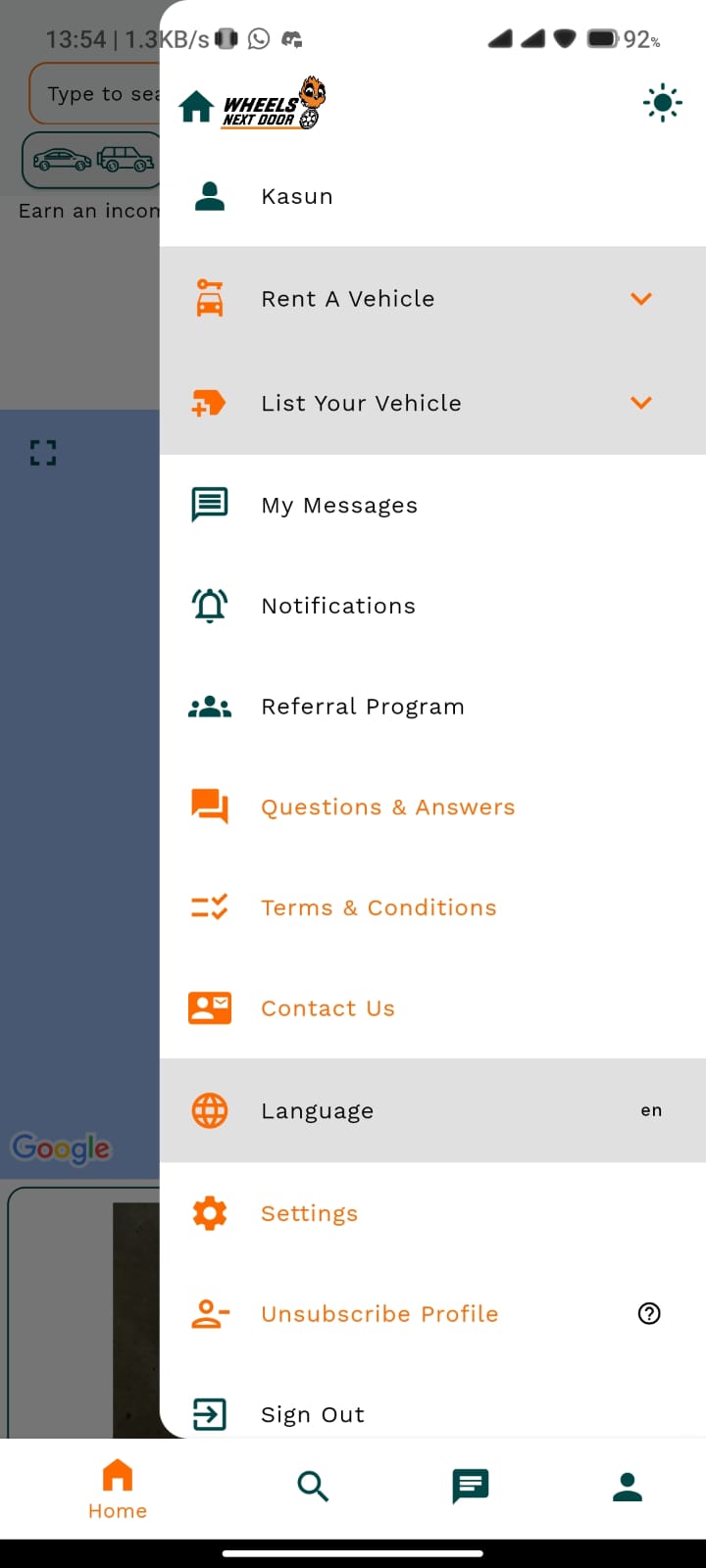
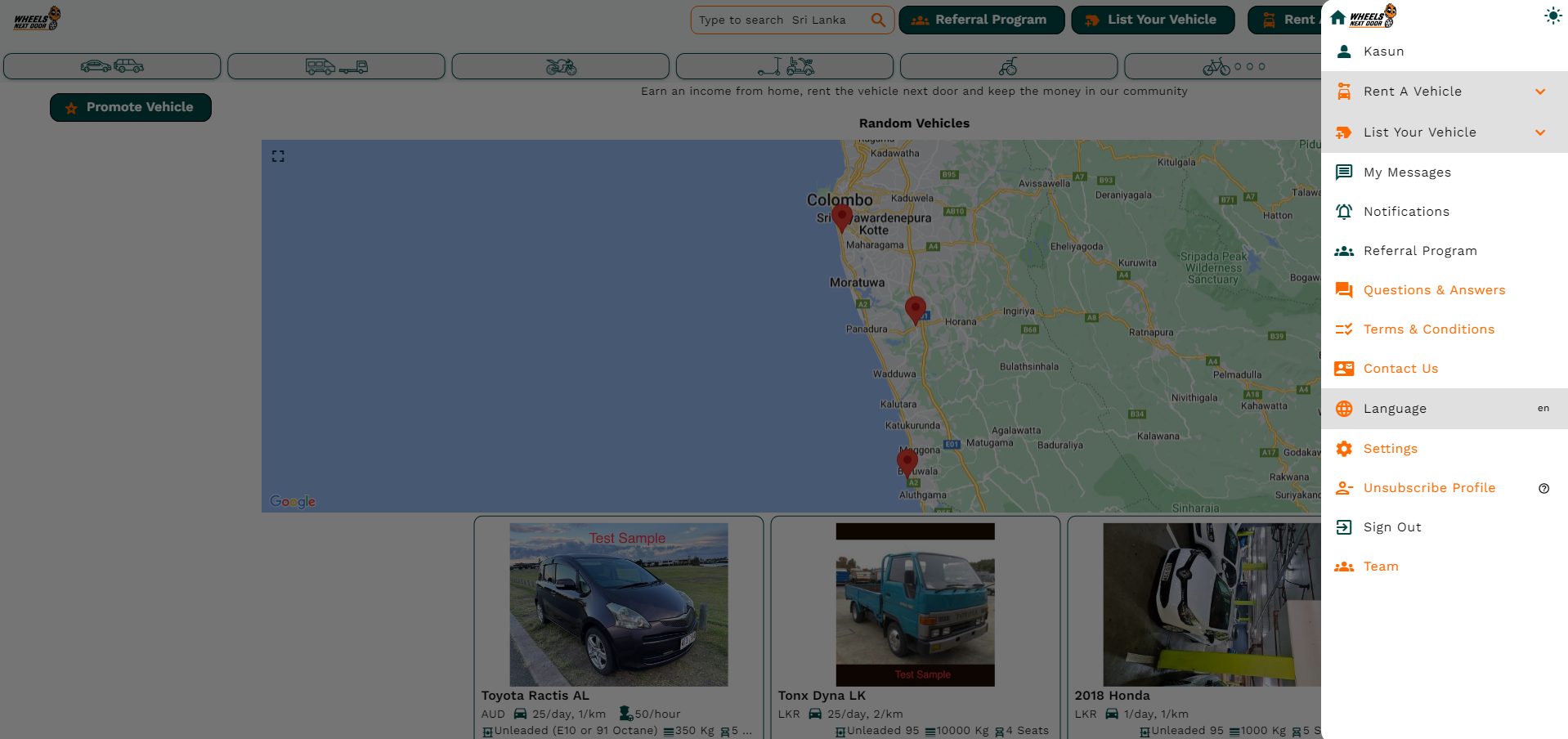
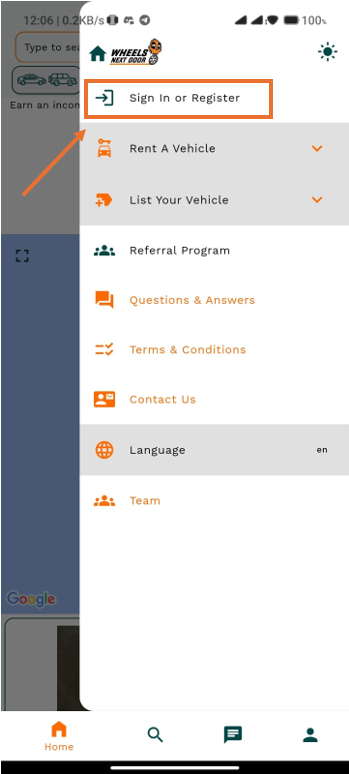
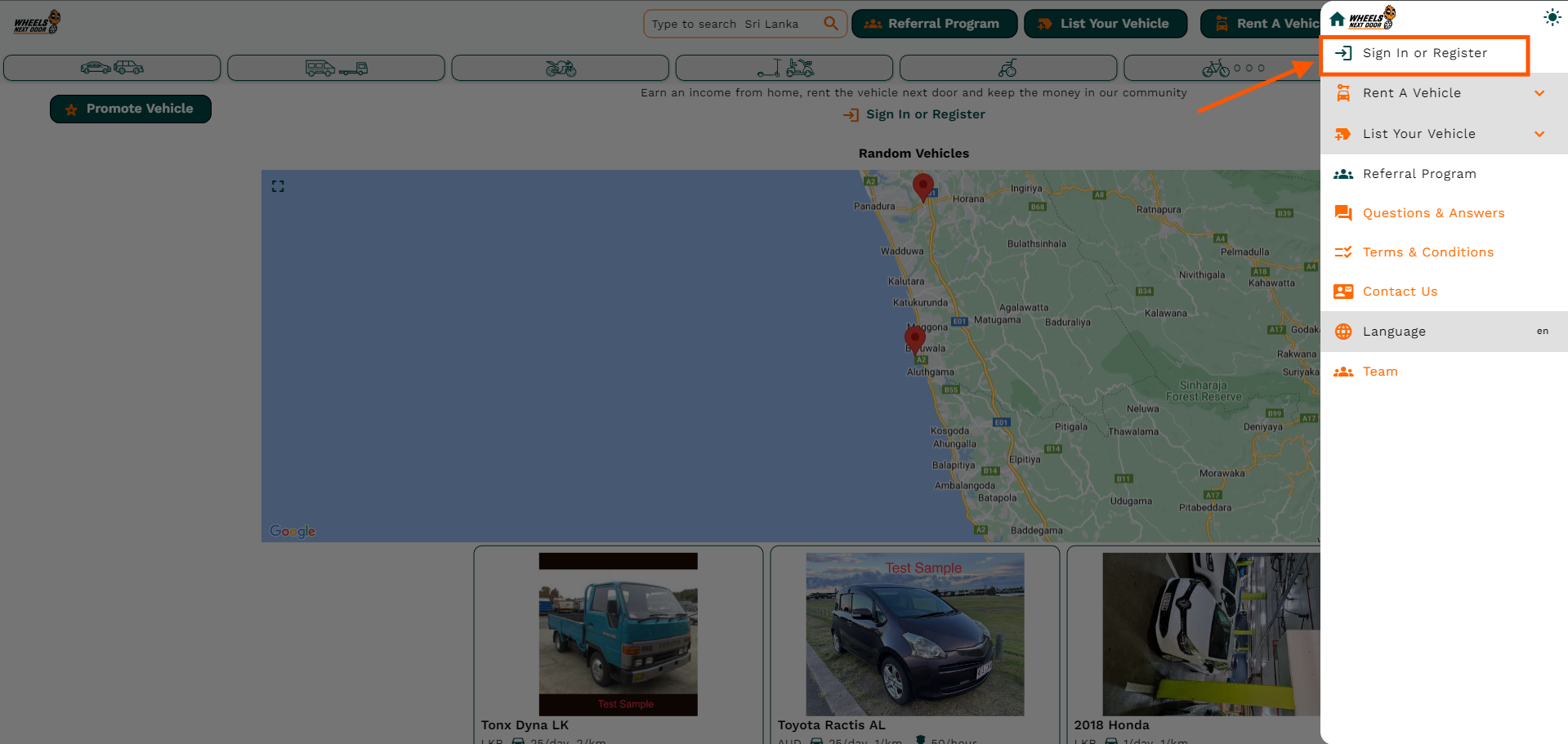
- If you want to find the category to navigate any section, please click on the 3 bars in the top right corner.
- After that you can see the Category Section.
¶ LOGIN OR REGISTRATION ON THE APP
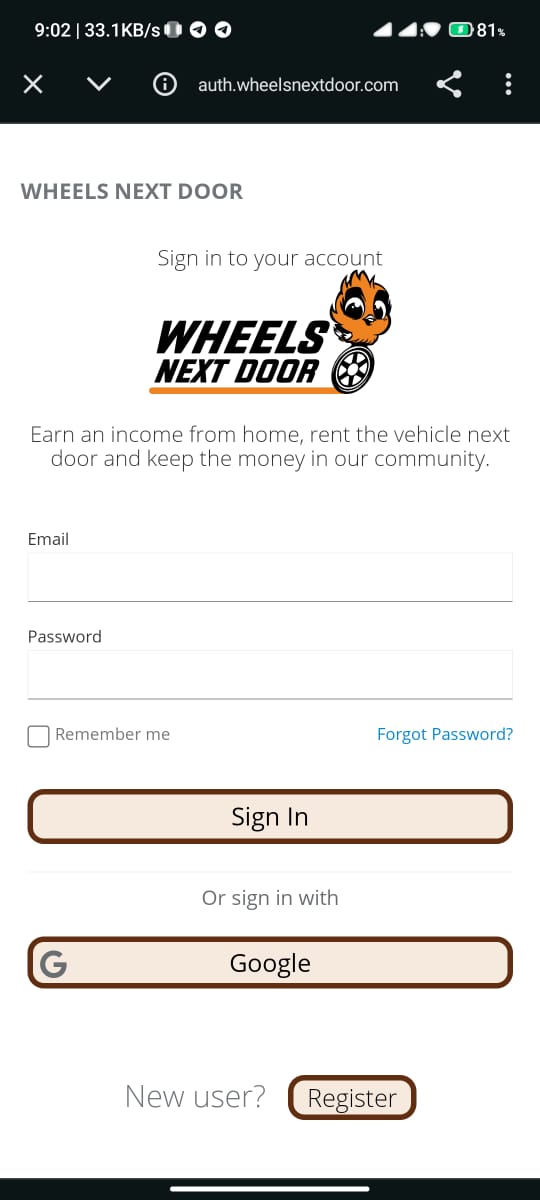
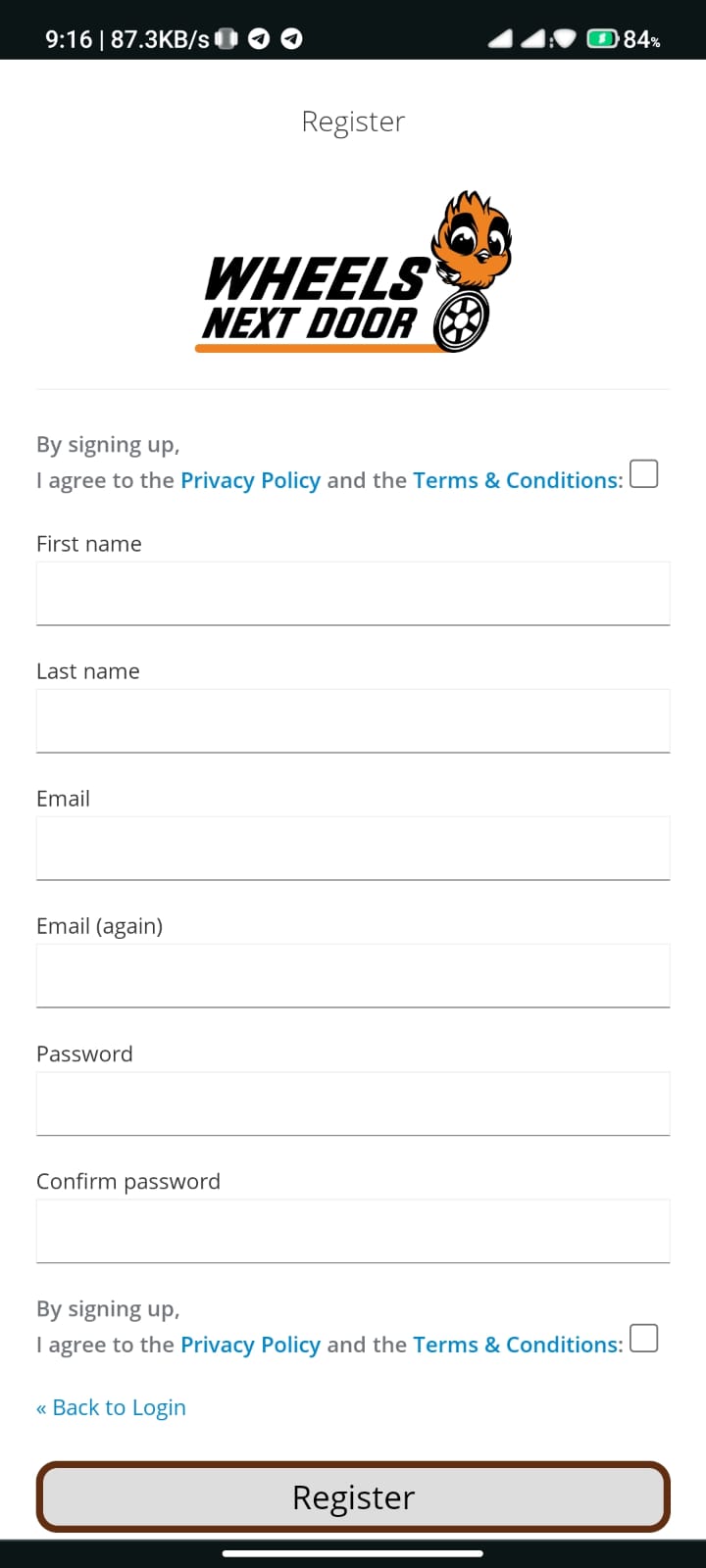
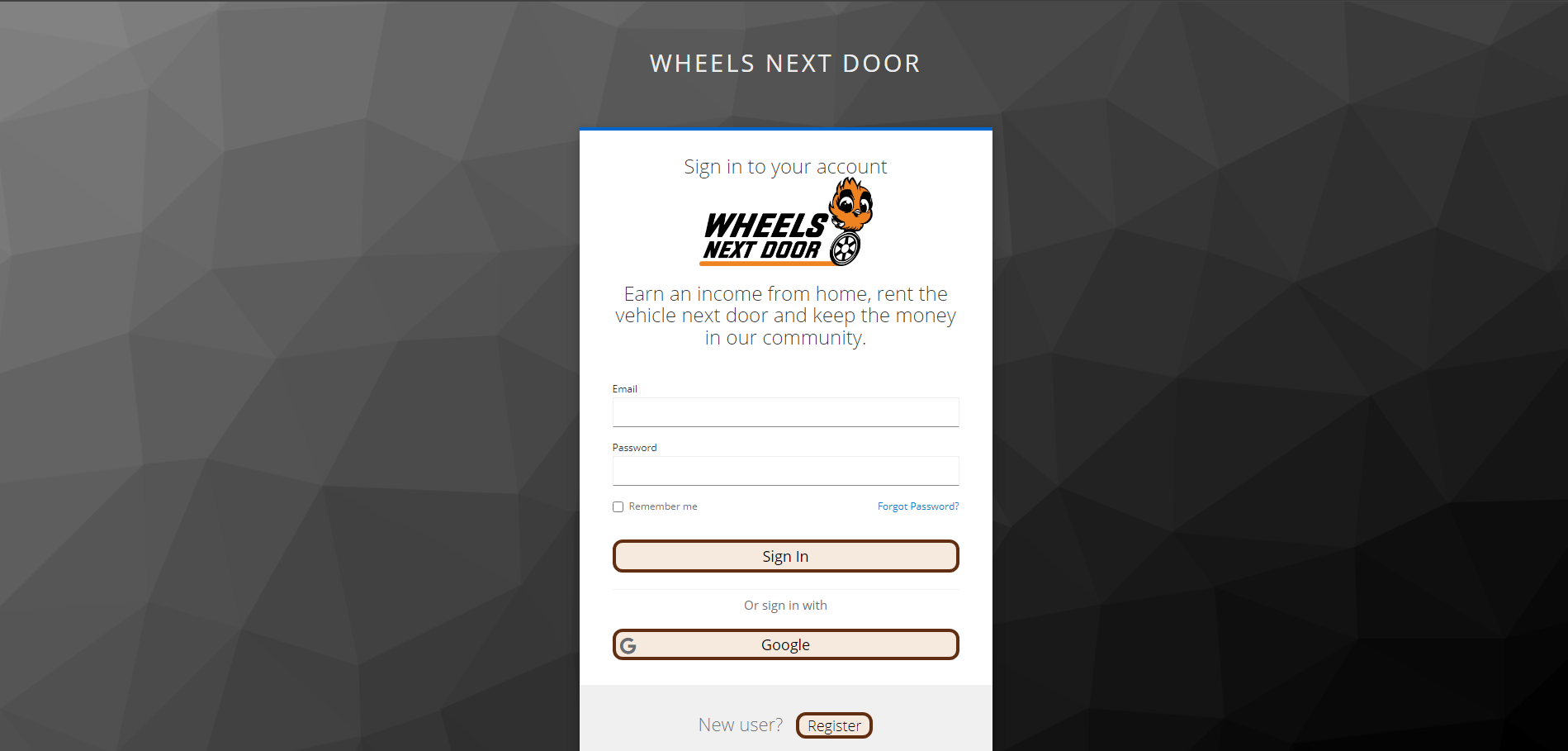
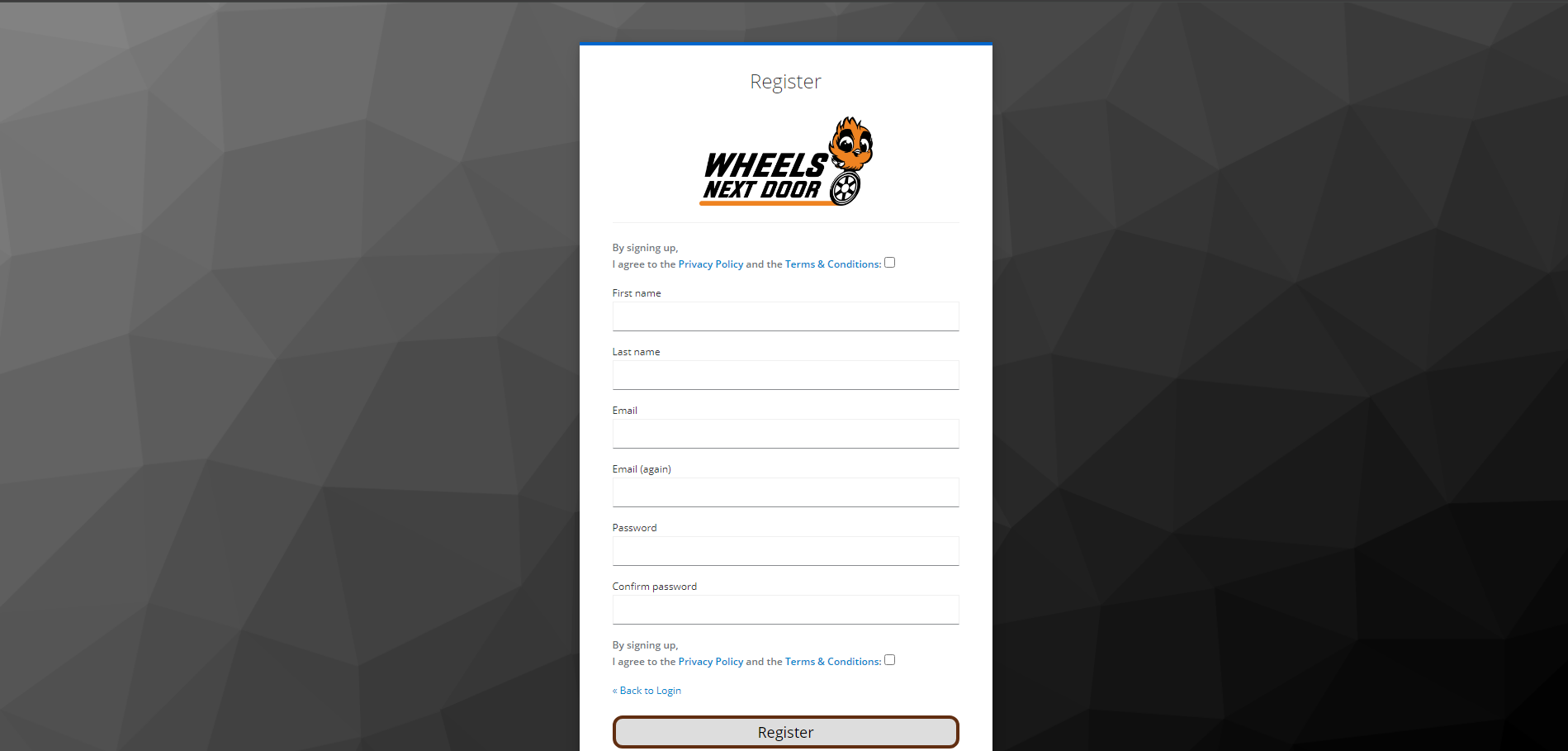
- To get full access, you need to register on the app. Therefore you need to register according to the images below.
- If you already registered to the App. Please go through it until the login page.
- If you are not registered yet, click on the register button on the login page. It will navigate you to the Registration Page
¶ NAVIGATE TO THE PROFILE SECTION AND VERIFY ACCOUNT
- If you are registered to the app you can log into the app using a username and password.
- After login to the app, you can see the home screen.
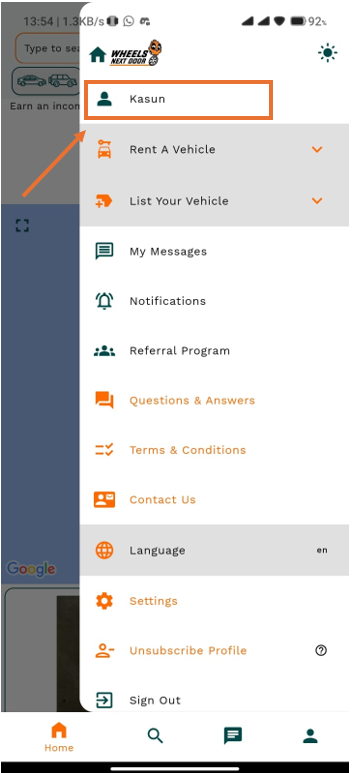
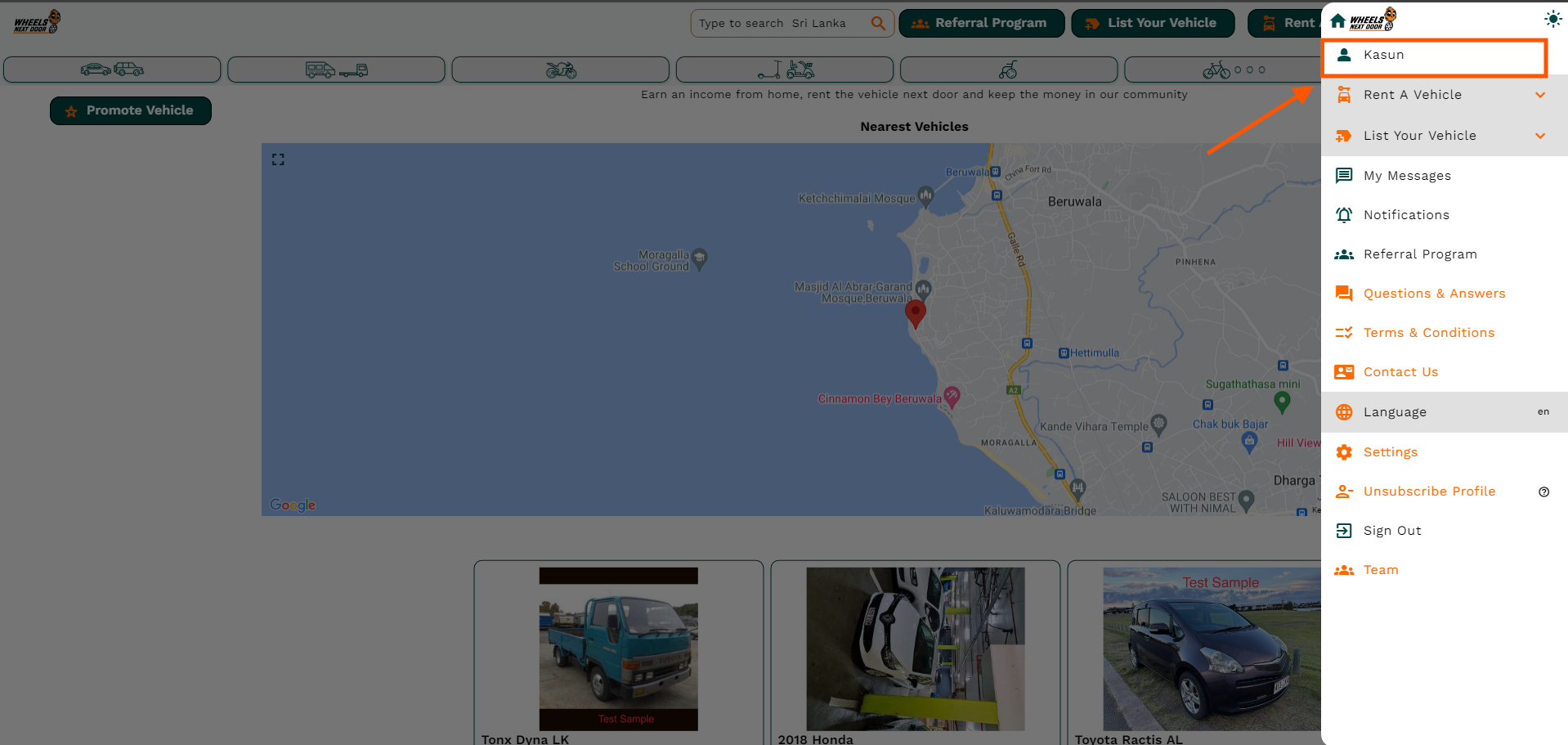
- Now the 3 bars in the top right corner will appear and you can click on that.
- Now you can see your name at the top of the list. click on it
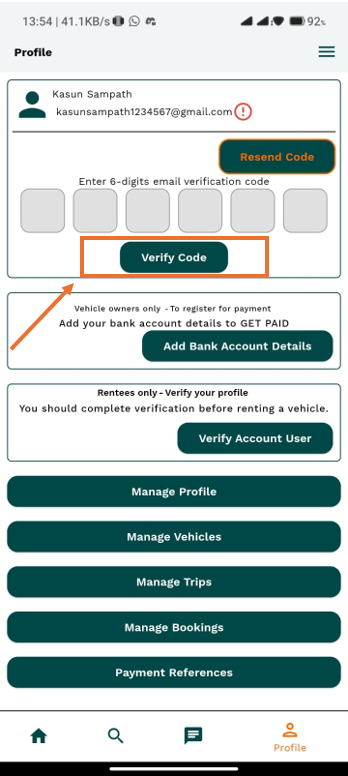
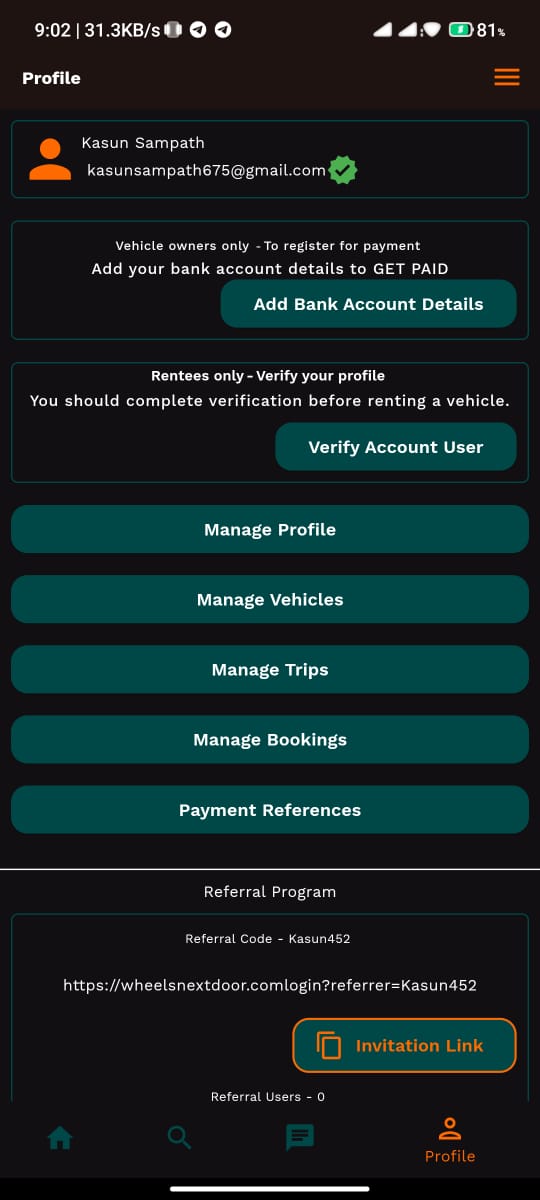
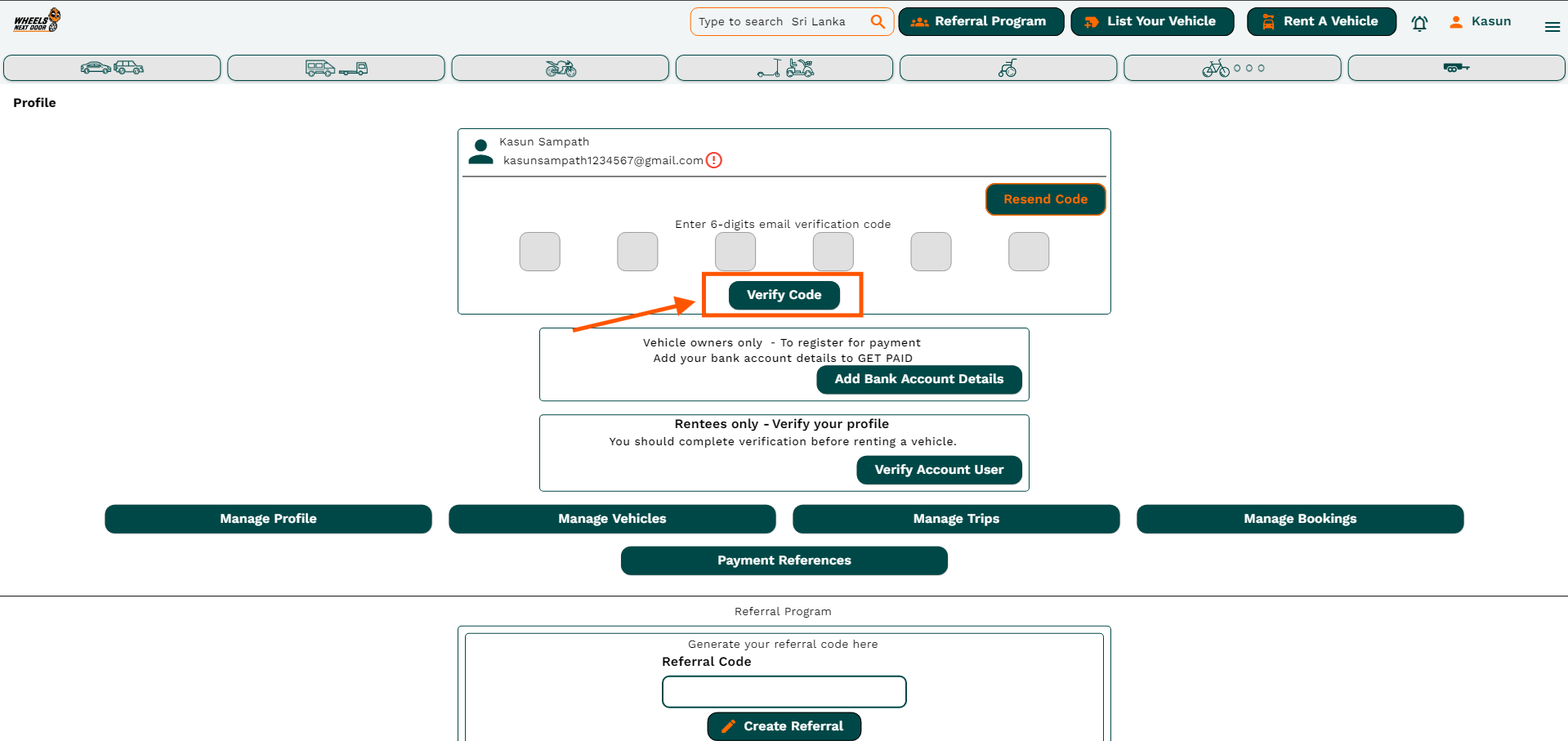
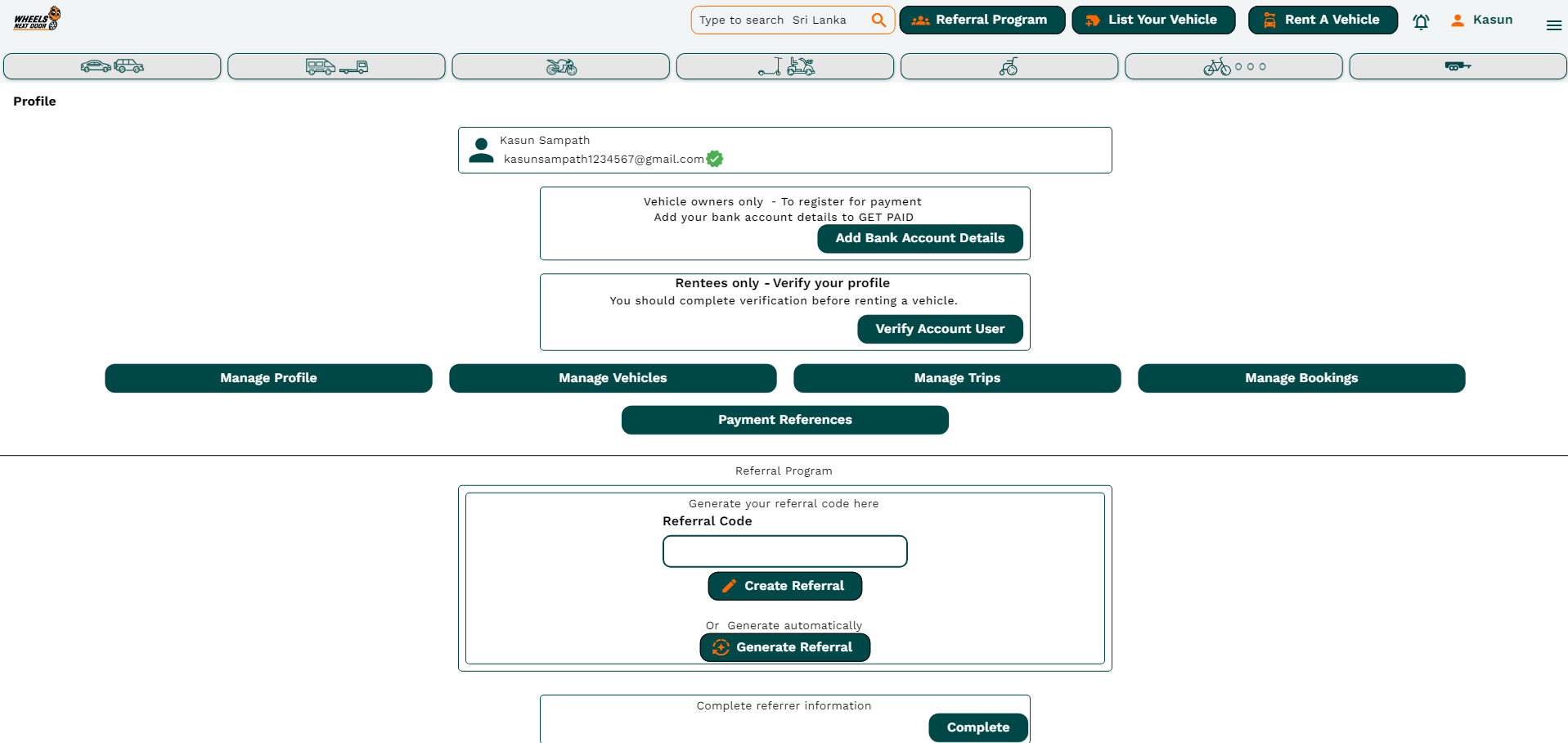
- Then you will be redirected to the profile page.
- There is a 6-digit verification code to verify your profile.
- You can find it in your e-mail that you provided as a username.
- After you have to enter 6 digits in there boxes and click on the verify code button.
- Now your account is verified.
¶ NAVIGATE TO THE APP SETTINGS
- The 3 bars in the top right corner will appear and you can click on that.
- Now you can see Settings icon there and click on it.
- Now you can see your name at the top of the list. click on it
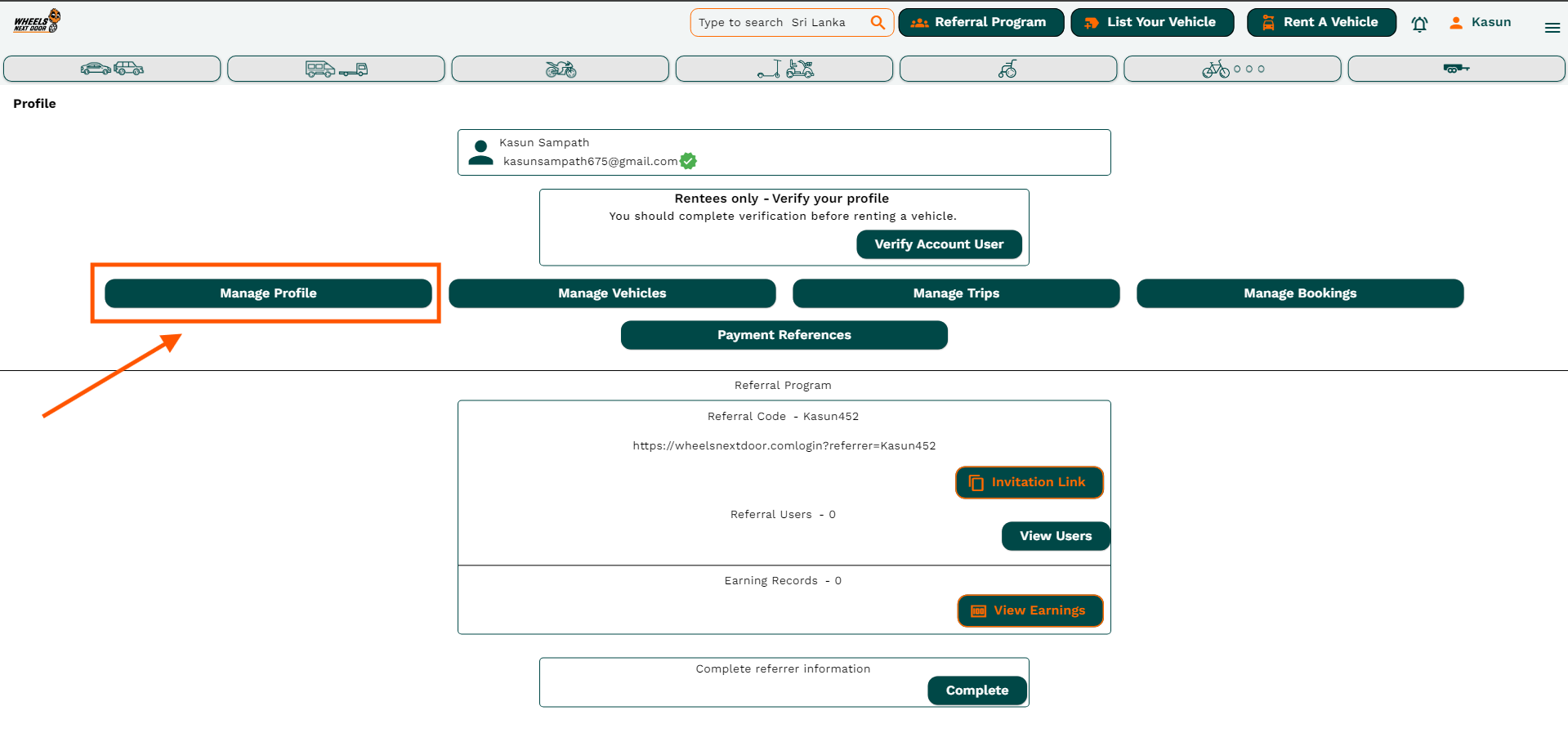
- Then you will be redirected to the profile page.
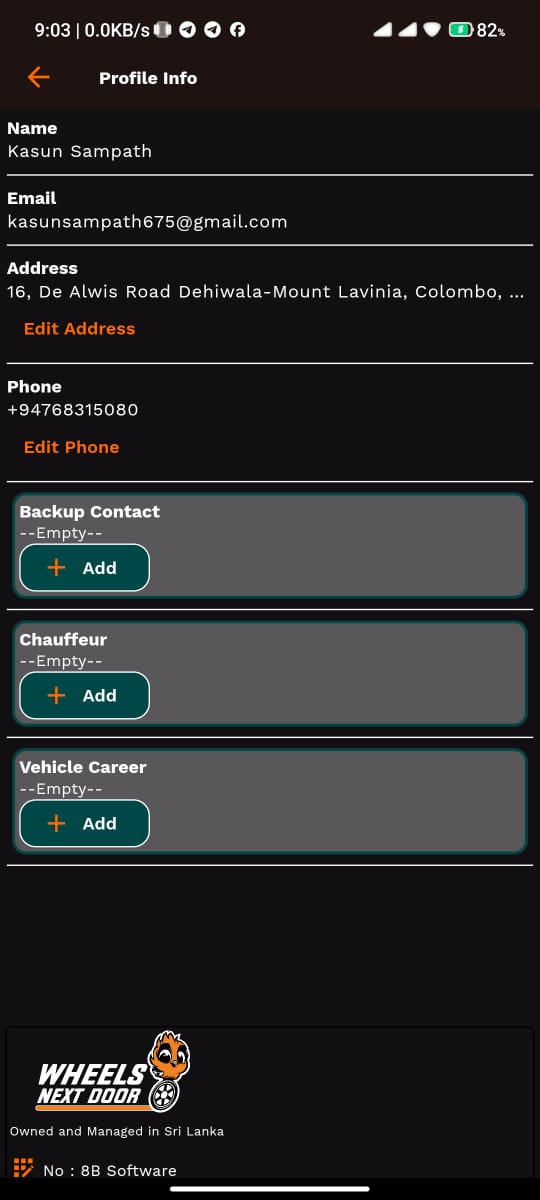
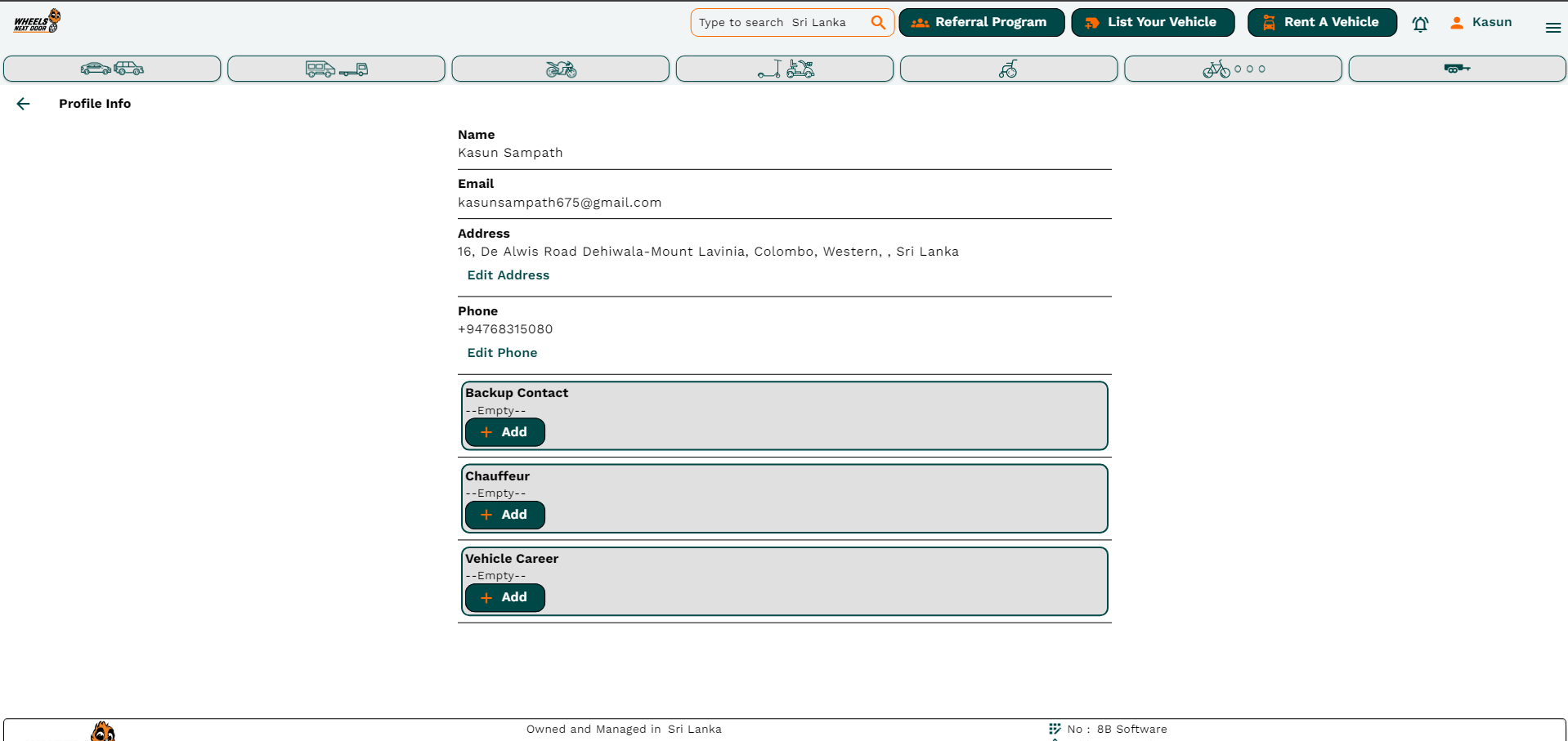
- Click on manage profile button.
- It will take you to the profile info page.
- You can edit or add details in there.
¶ NAVIGATE TO THE RENTEE PROFILE SECTION AND SETUP ACCOUNT
- If you are registered to the app you can log into the app using a username and password.
- After login to the app, you can see the home screen.
- Now the 3 bars in the top right corner will appear and you can click on that.
- Now you can see your name at the top of the list. click on it
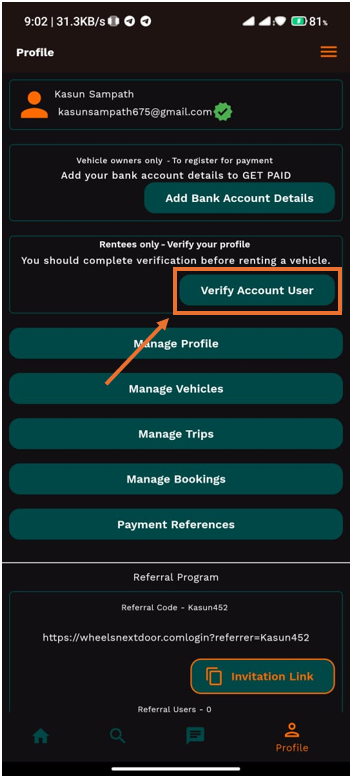
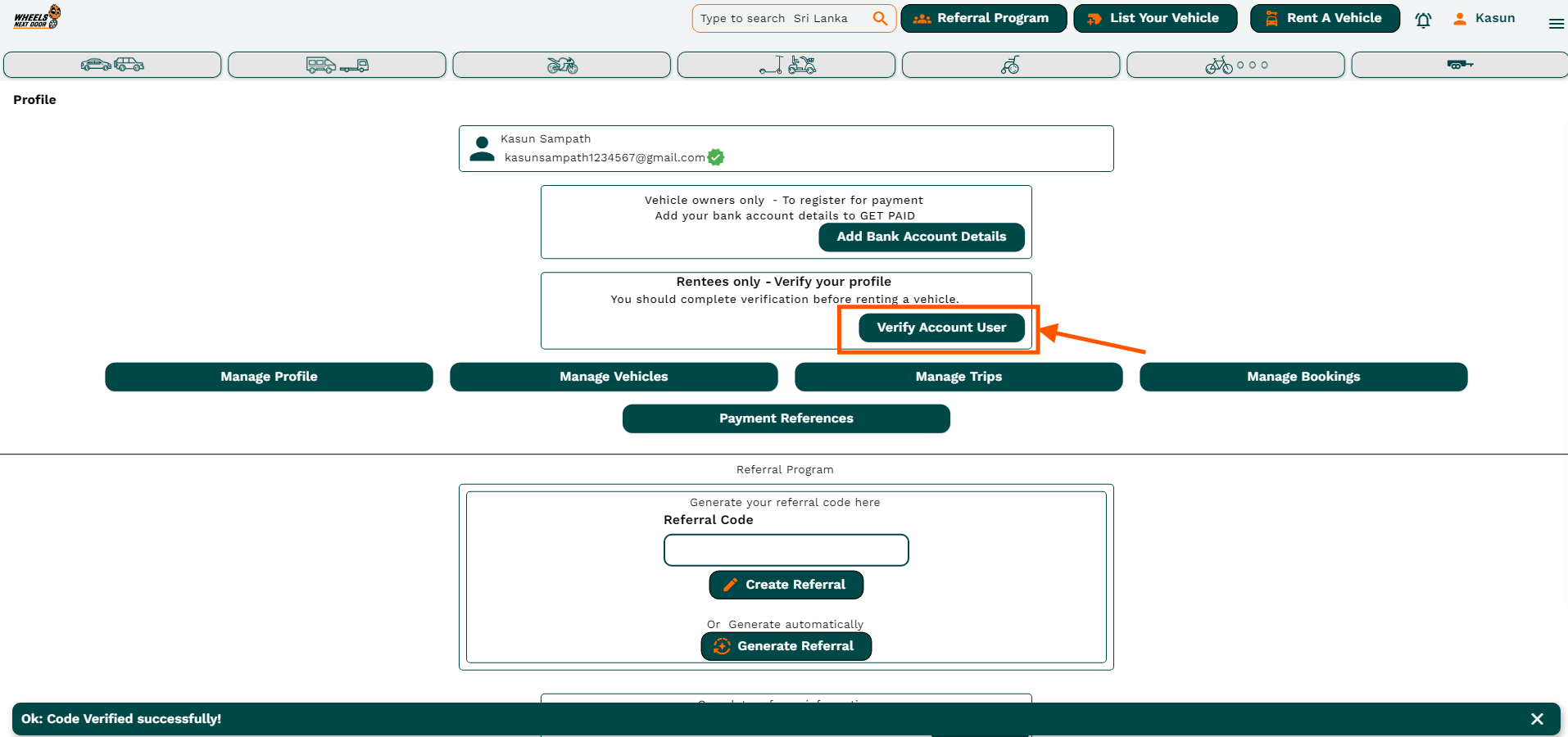
- Then you will be redirected to the profile page.
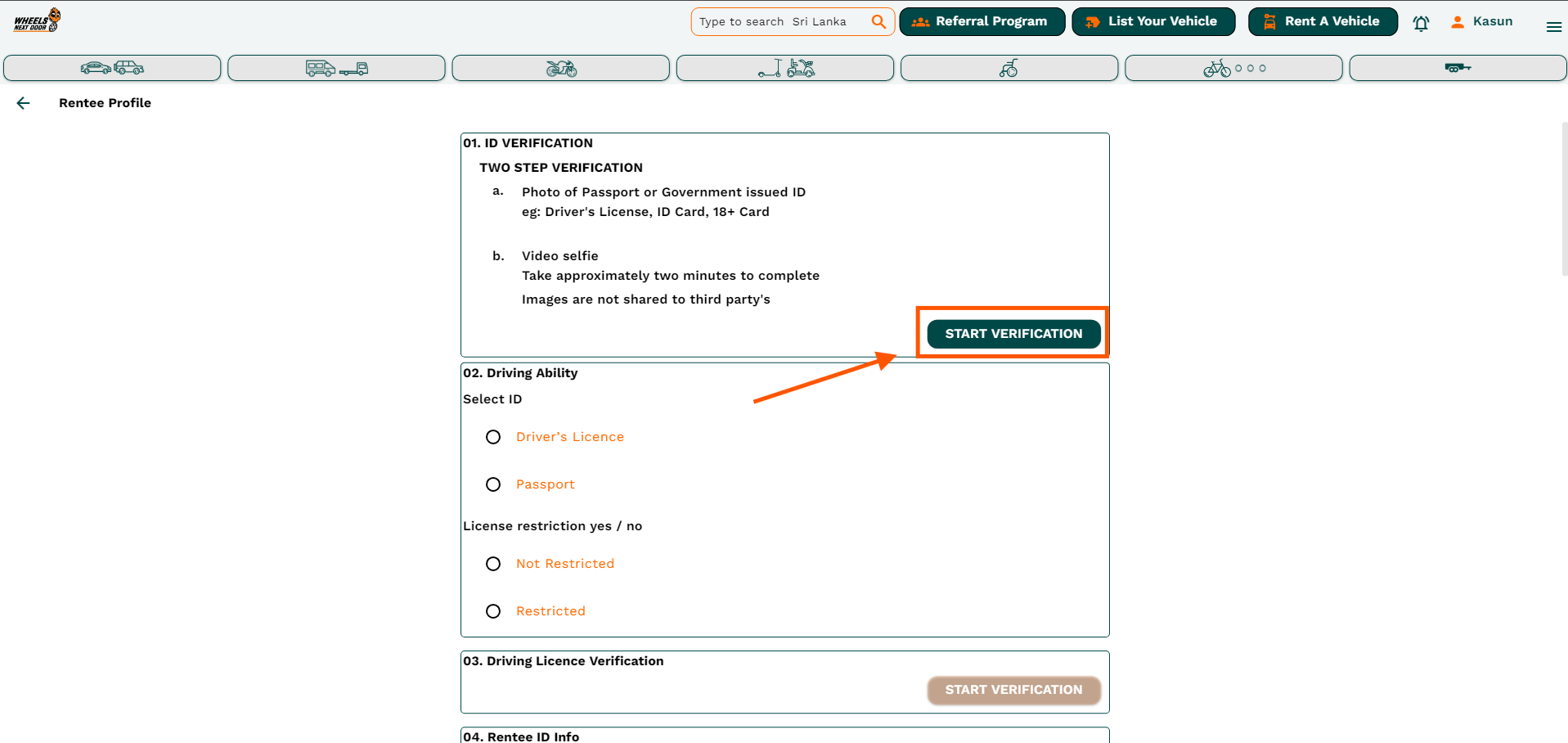
- There you can see the verify account user button.
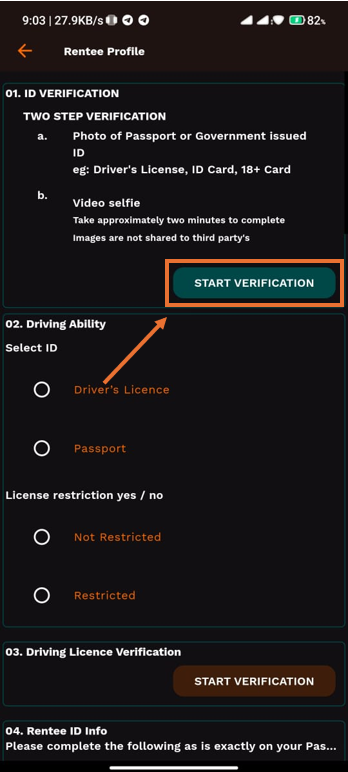
- And it will take you to the rentee account setup screen.
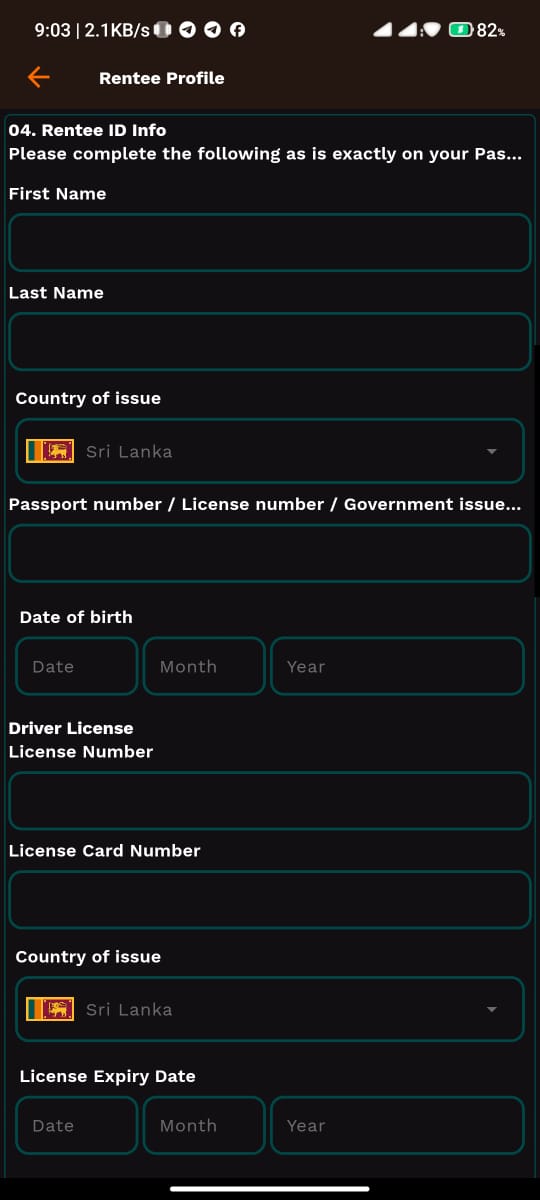
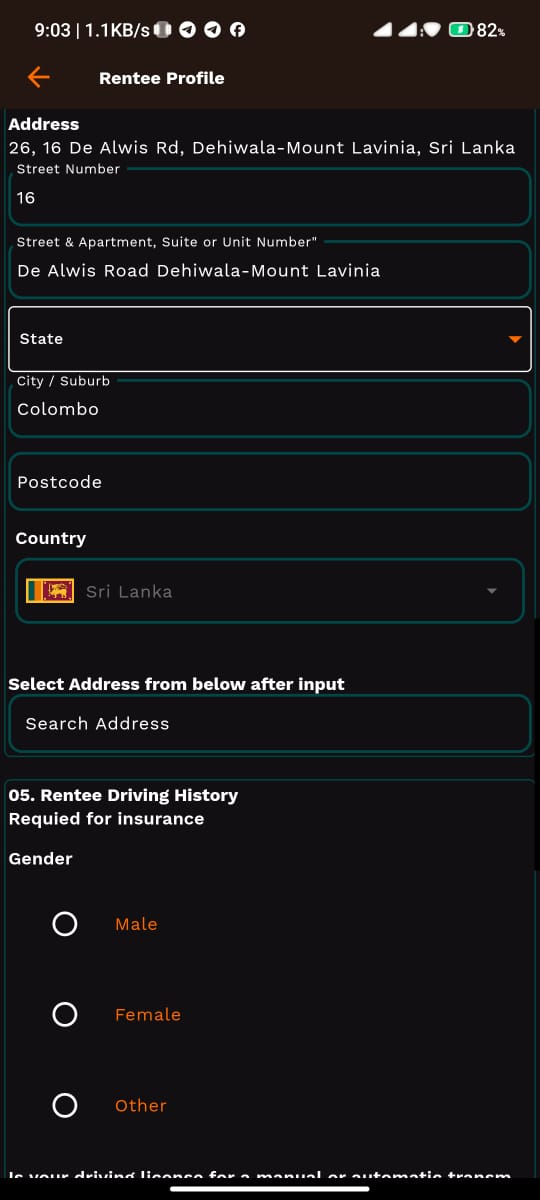
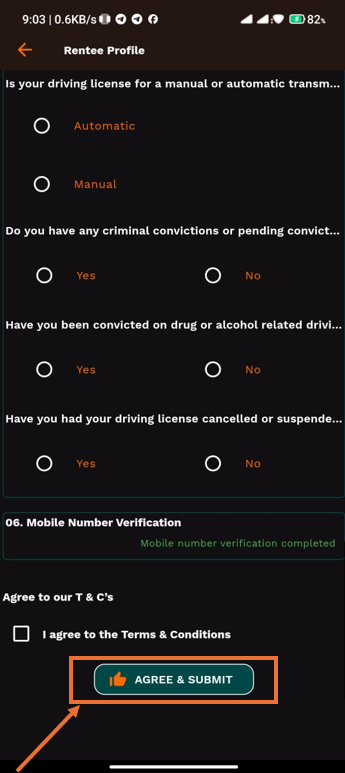
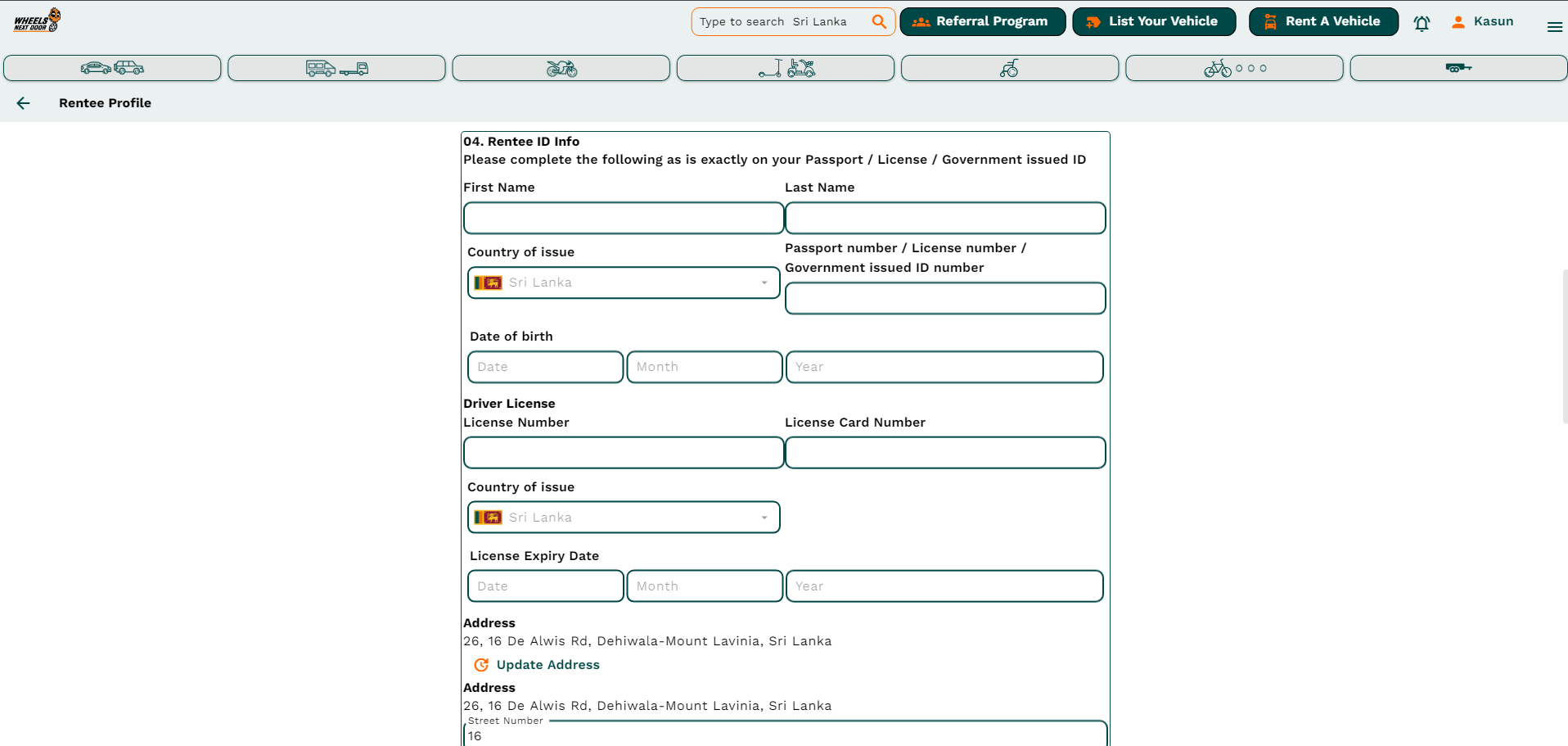
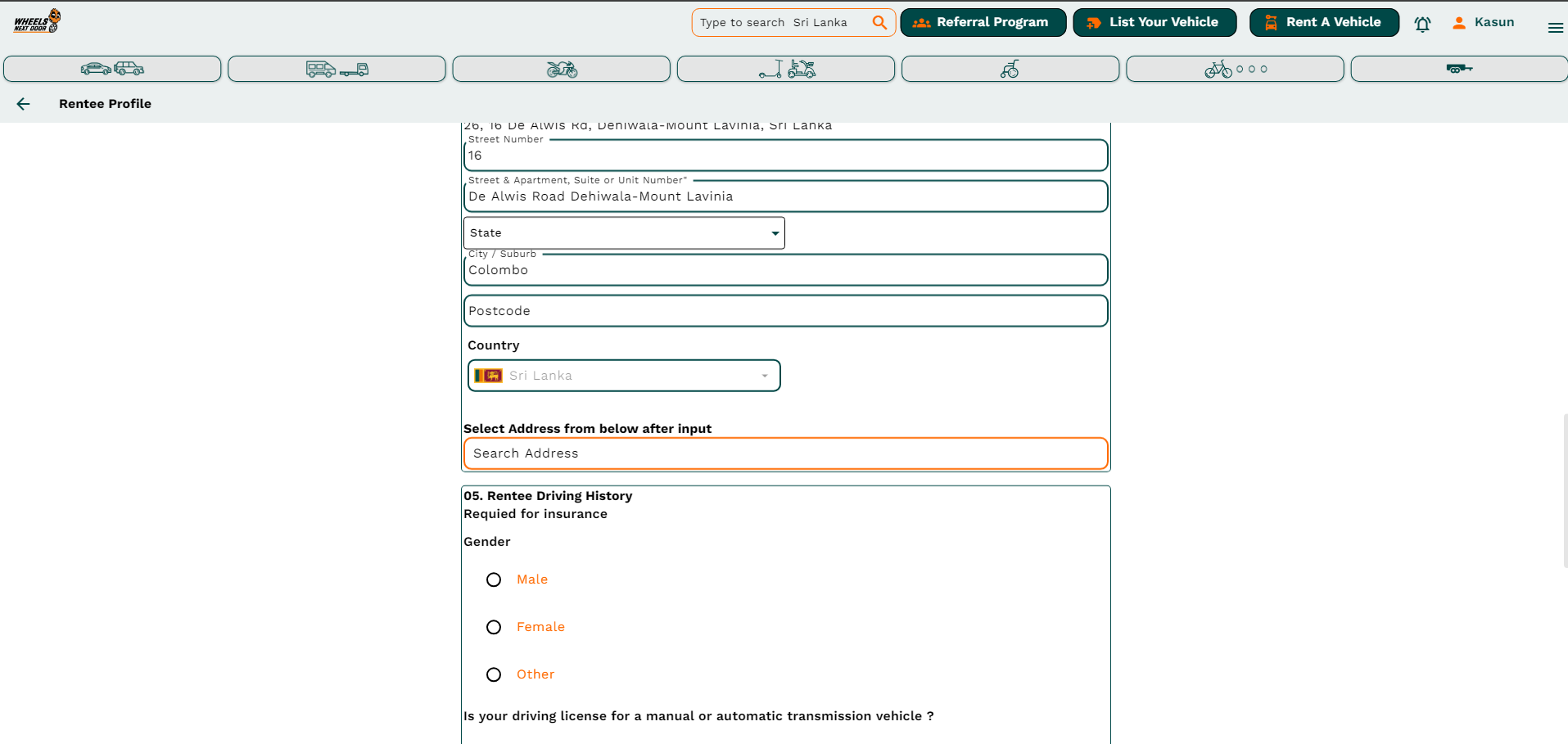
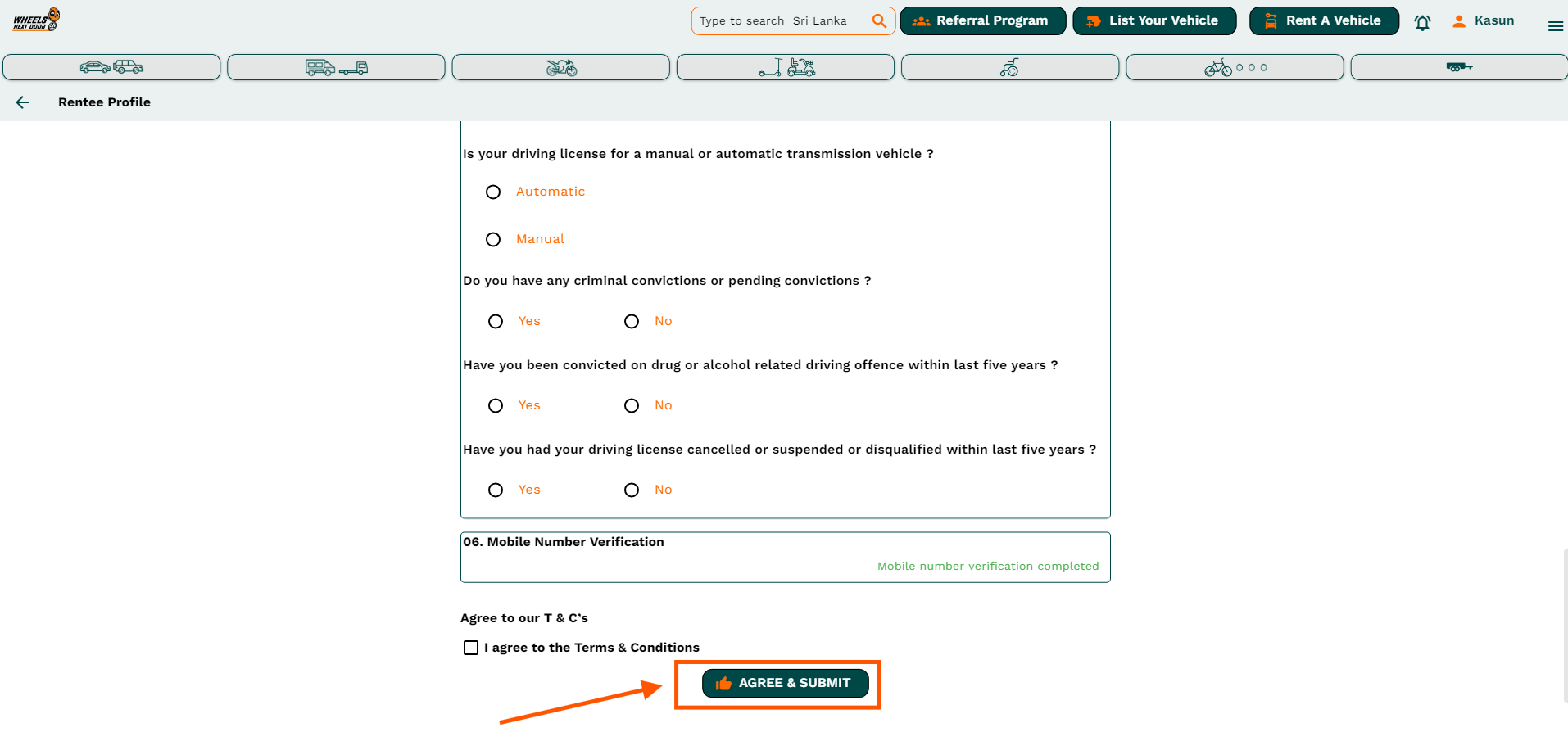
- Follow the given instructions and fill necessary details there.
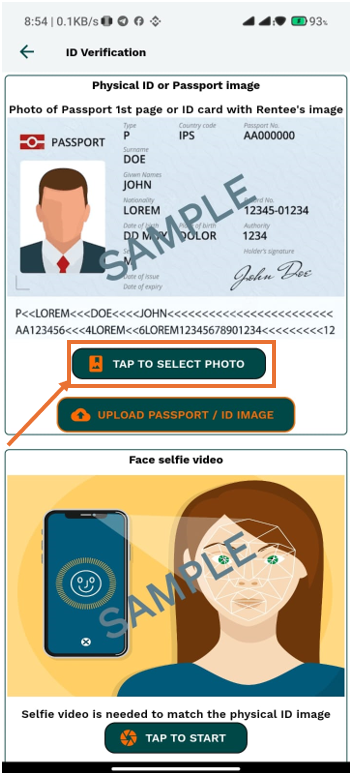
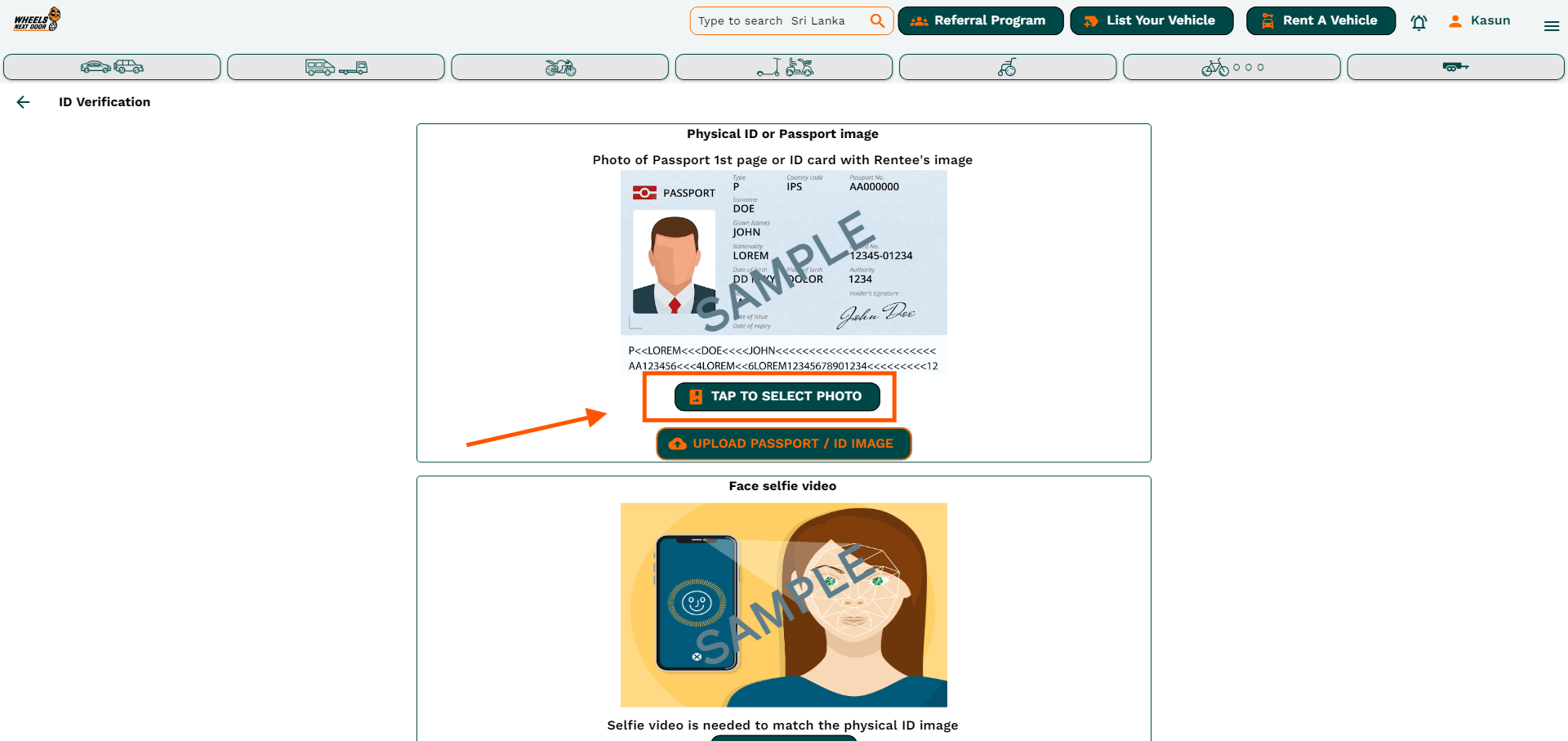
- In the ID verification section, you have to upload your valid ID or Passport image and a selfie video to verify your identity.
- After that click the back arrow icon in the top left corner to go to the previous page to set up the rest of the details.
- After filling in the all details, click on the agree & submit button to create a rentee profile.
¶ ADD BANK ACCOUNT DETAILS IN THE PROFILE
- After login to the app, you can see the home screen.
- The 3 bars in the top right corner will appear and you can click on that.
- Now you can see your name at the top of the list. click on it
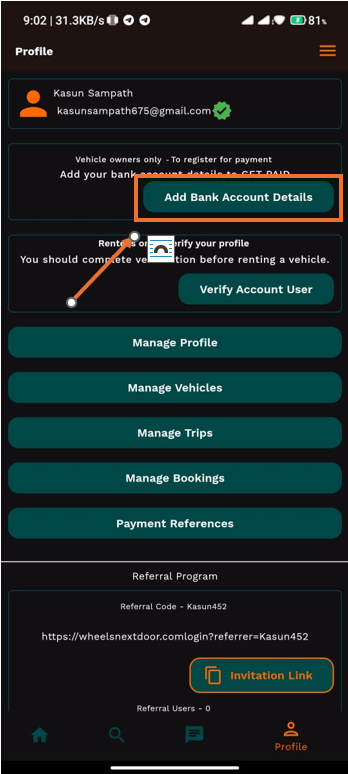
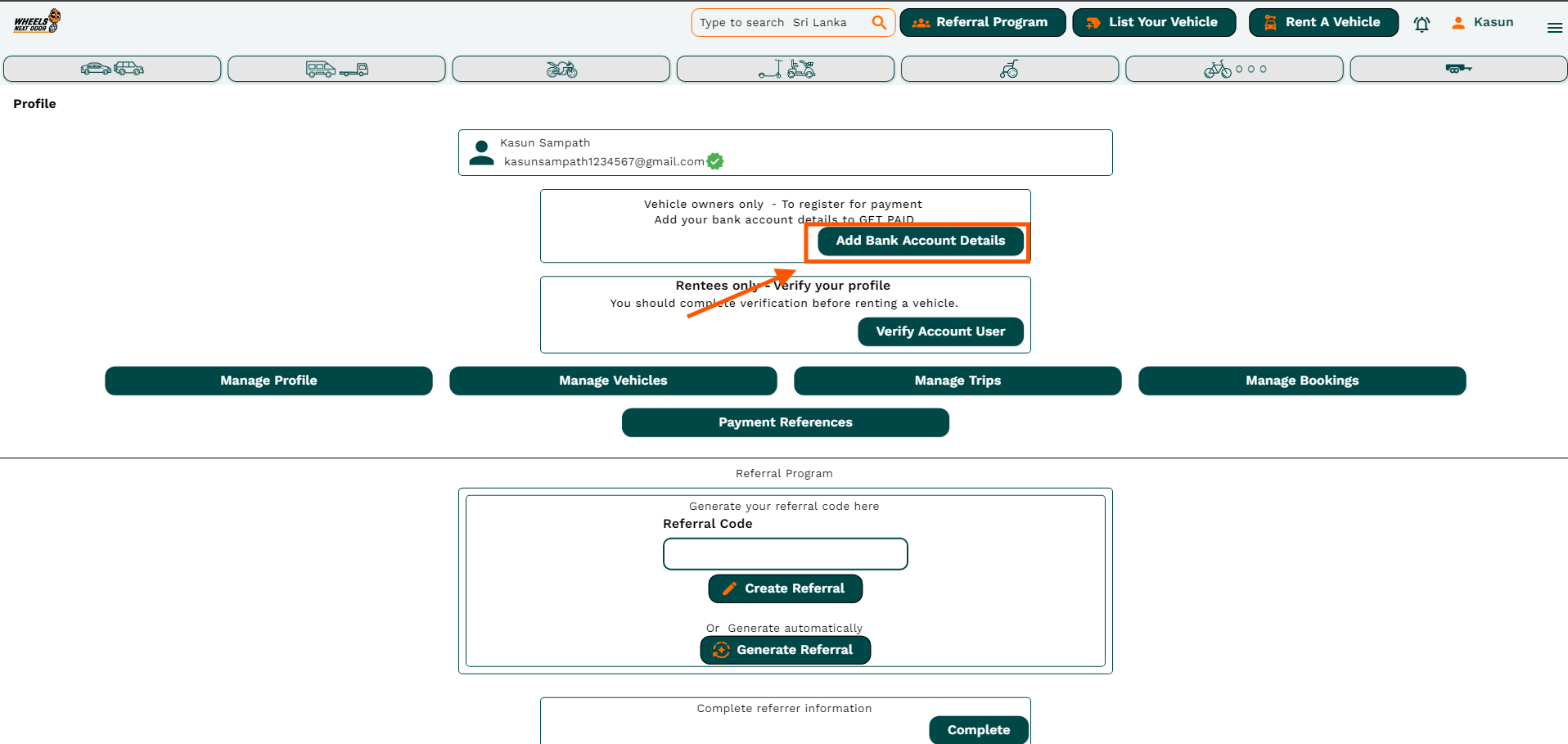
- Then you will be redirected to the profile page.
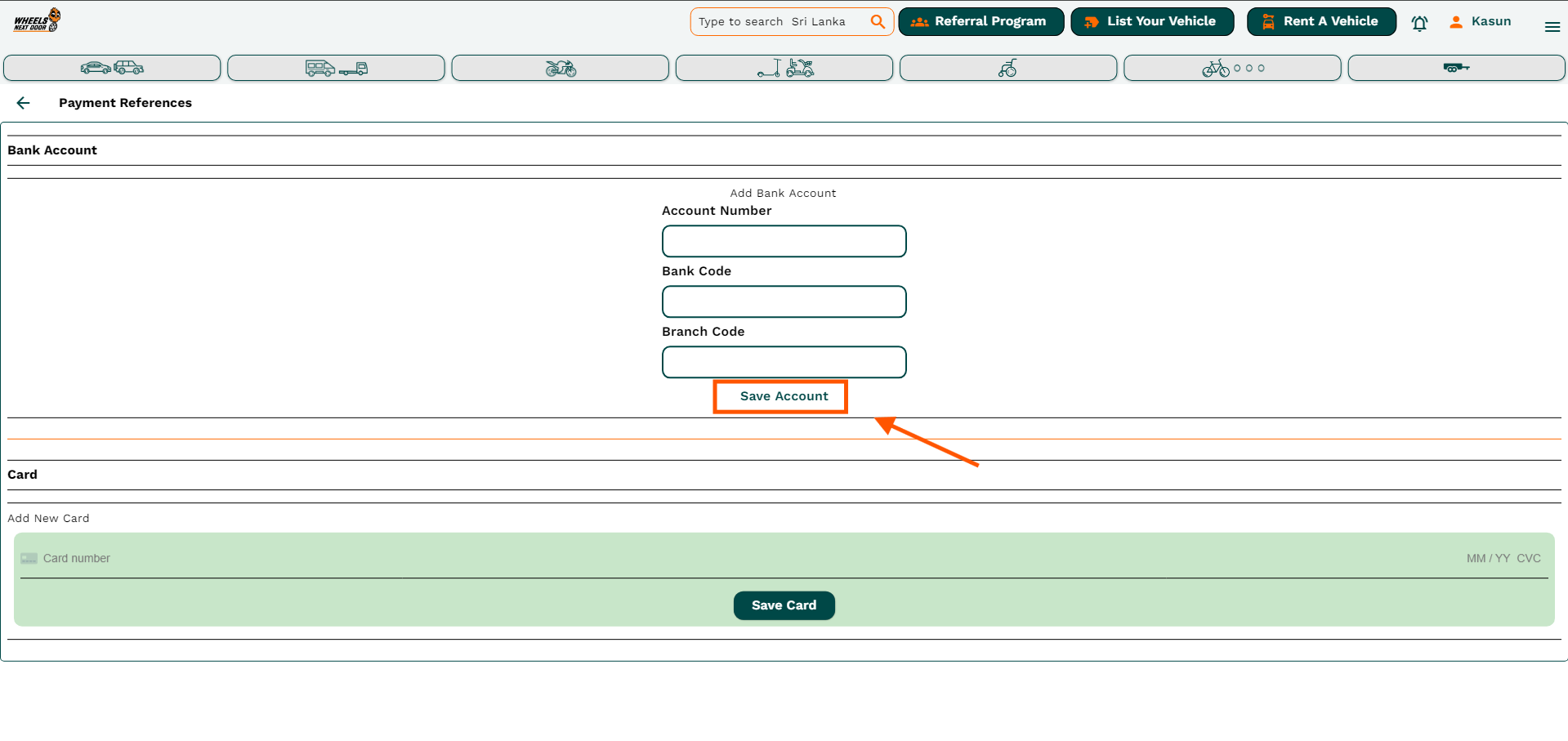
- There you can see the Add bank account details button and click on it.
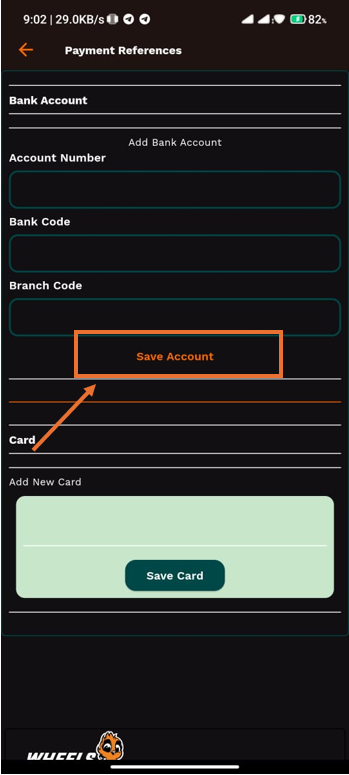
- It will take you to the payment references screen.
- Follow the given instructions and fill necessary details there.
- After that, click the Save Account button
¶ NAVIGATE TO THE APP SETTINGS
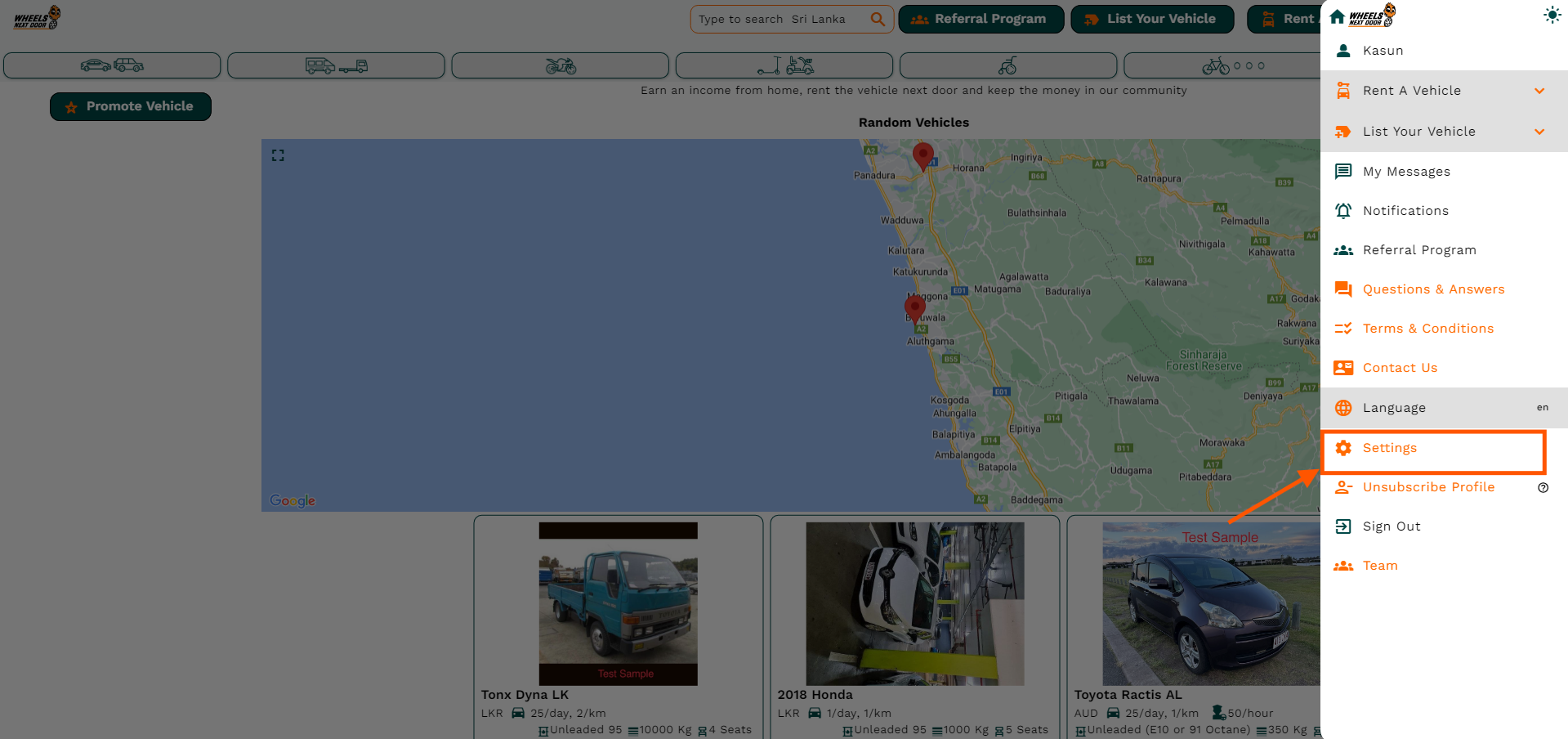
- The 3 bars in the top right corner will appear and you can click on that.
- Now you can see Settings icon there and click on it.
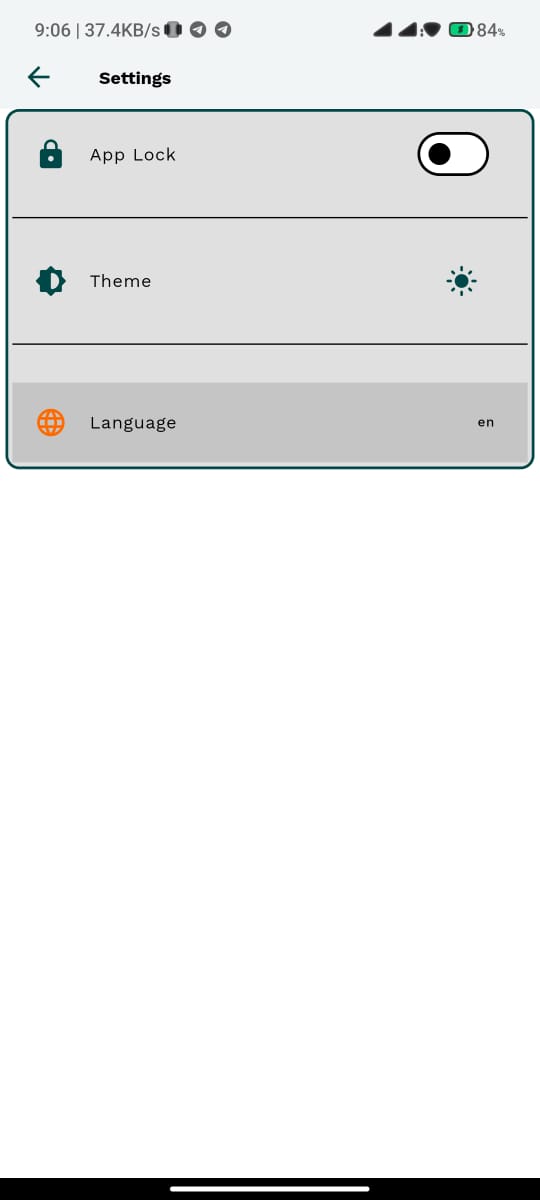
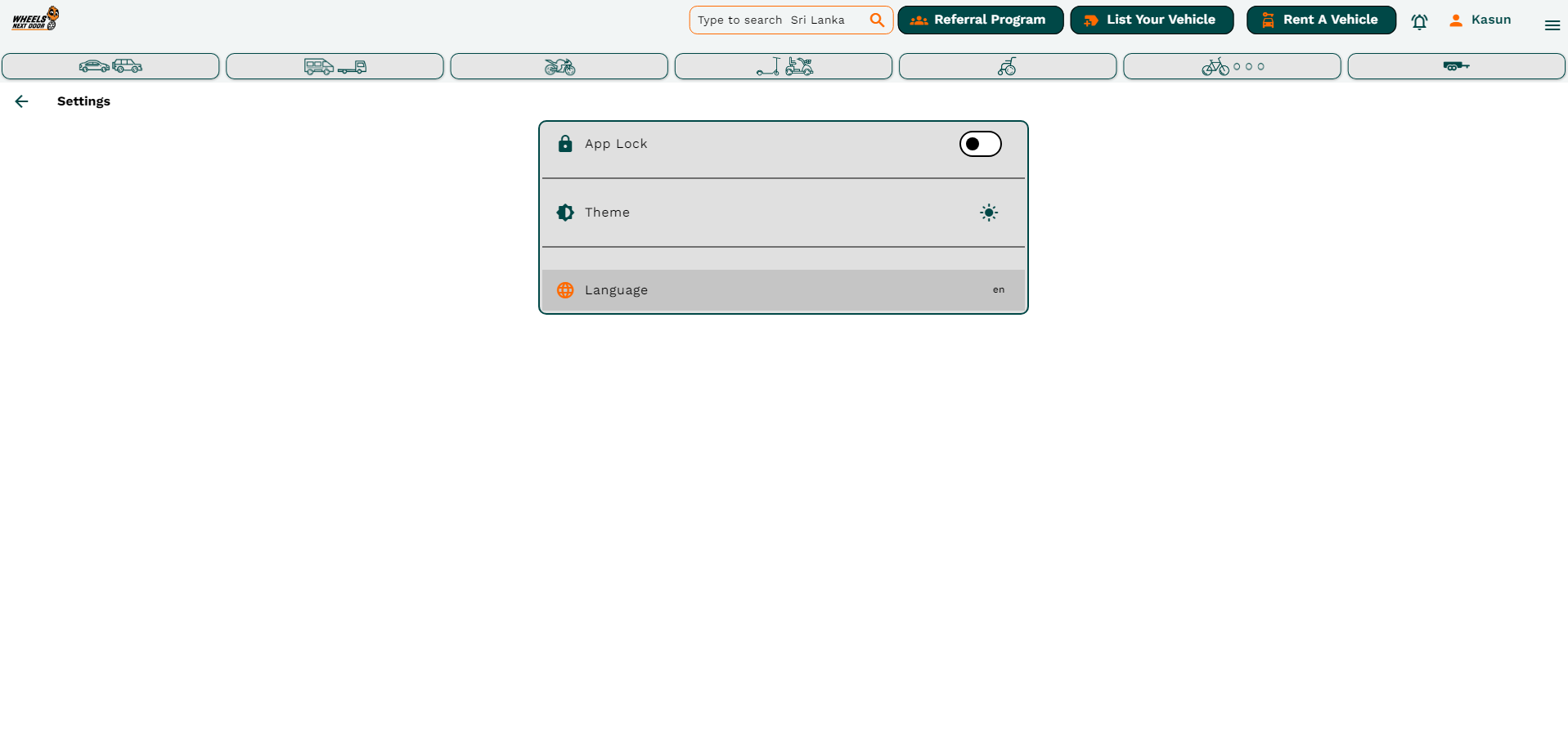
- Then you will be redirected to the settings page.
- There you can see App Lock, Theme, and Language.

¶ NAVIGATE TO THE APP SETTINGS
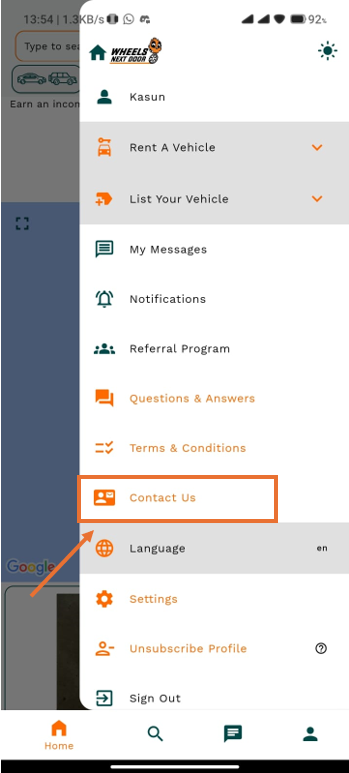
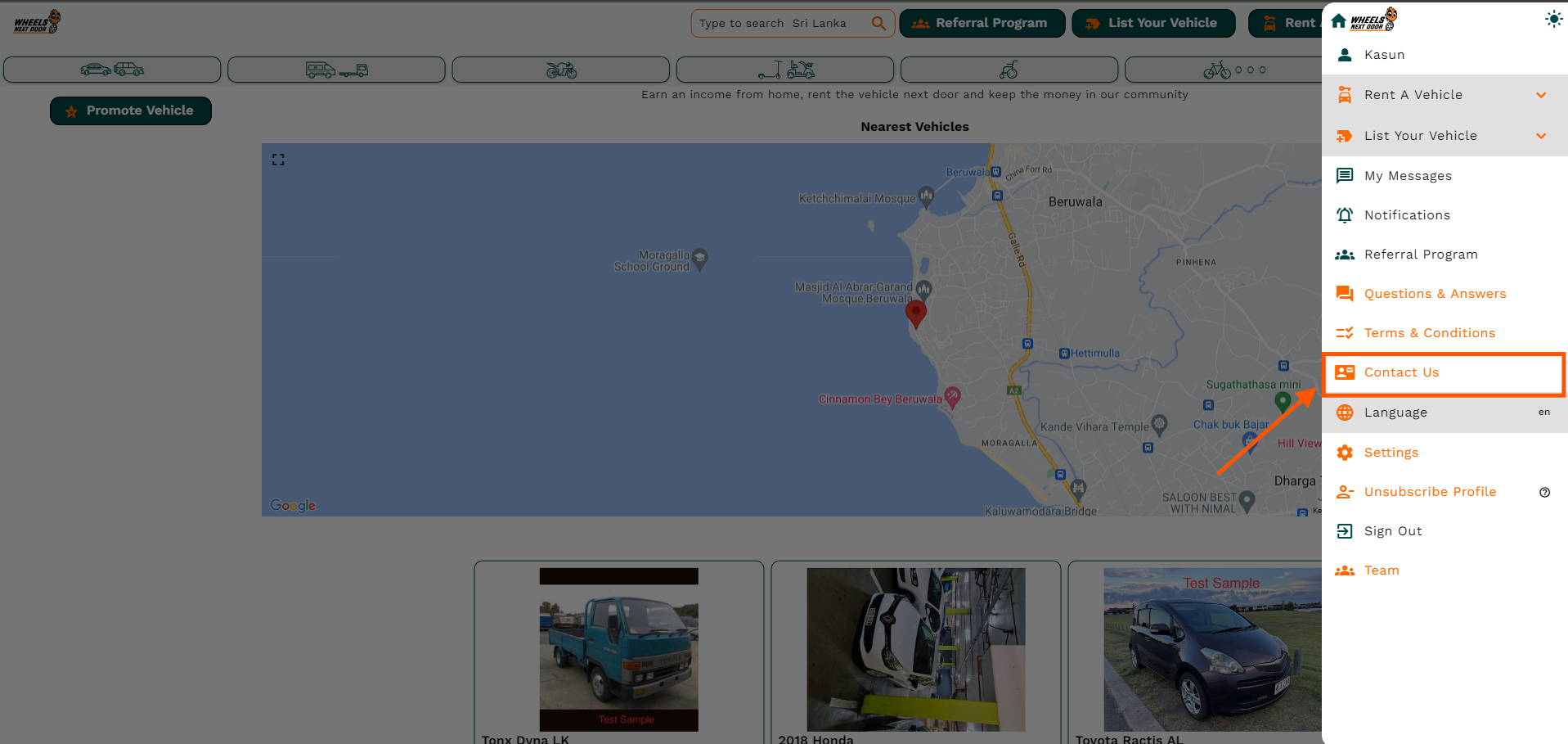
- The 3 bars in the top right corner will appear and you can click on that.
- Now you can see Contact us icon there and click on it.
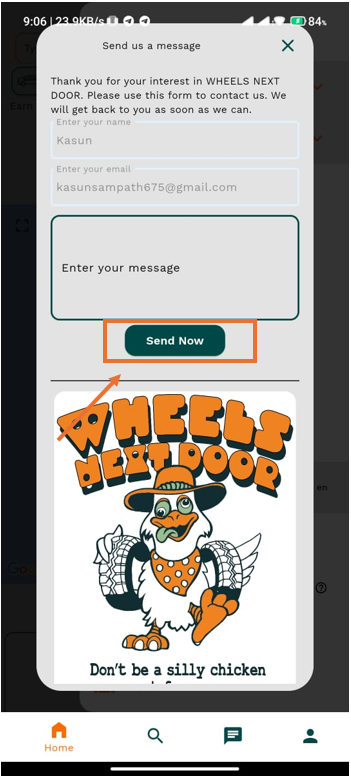
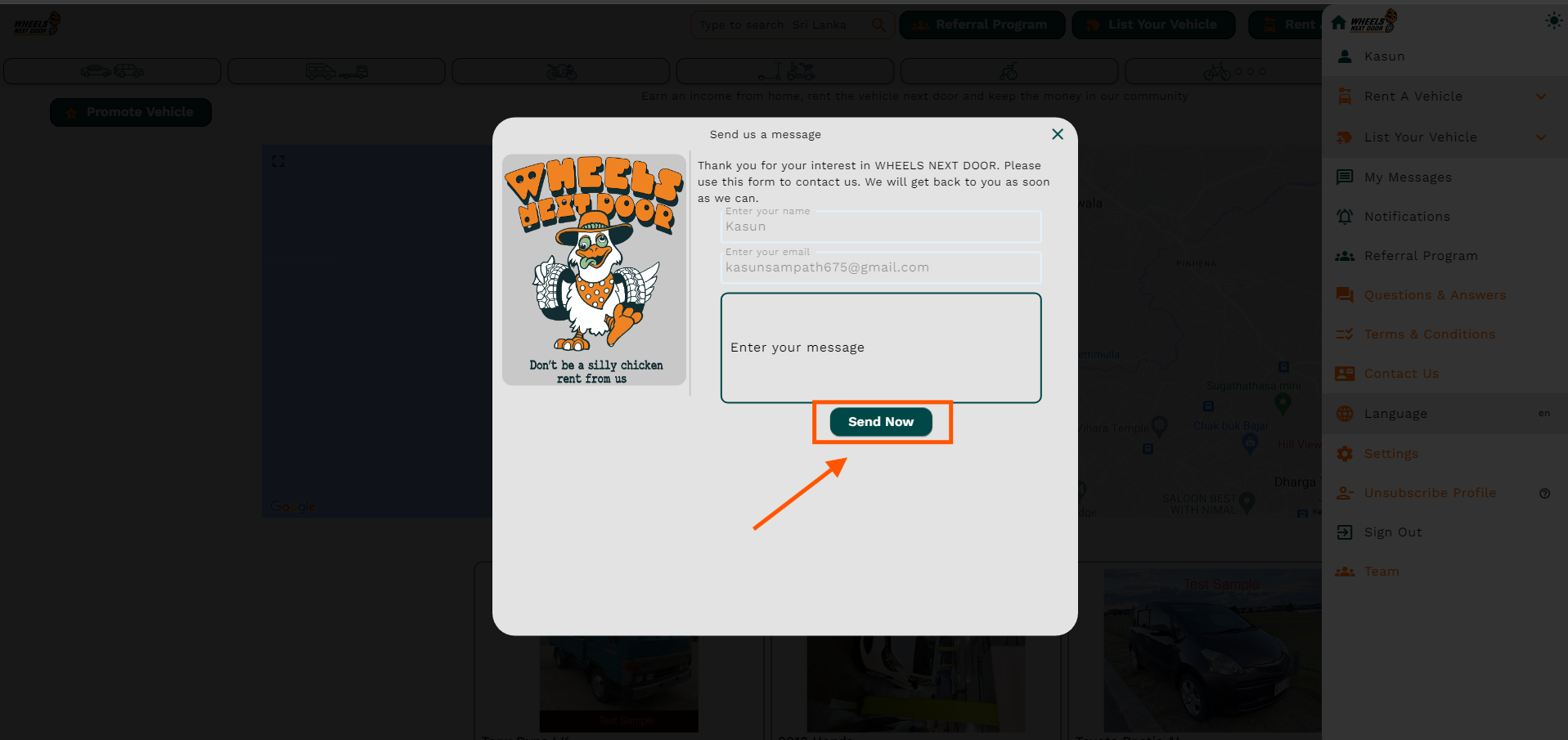
- Then you will be redirected to the Contact us page.
- In here you can send messages. Type your message in tha blank area and hit on send now button.
¶ NAVIGATE TO THE APP SETTINGS
- The 3 bars in the top right corner will appear and you can click on that.
- Now you can see your name at the top of the list. click on it
- Then you will be redirected to the profile page.
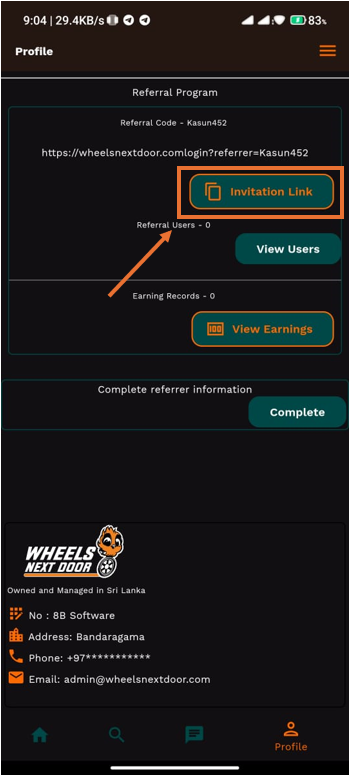
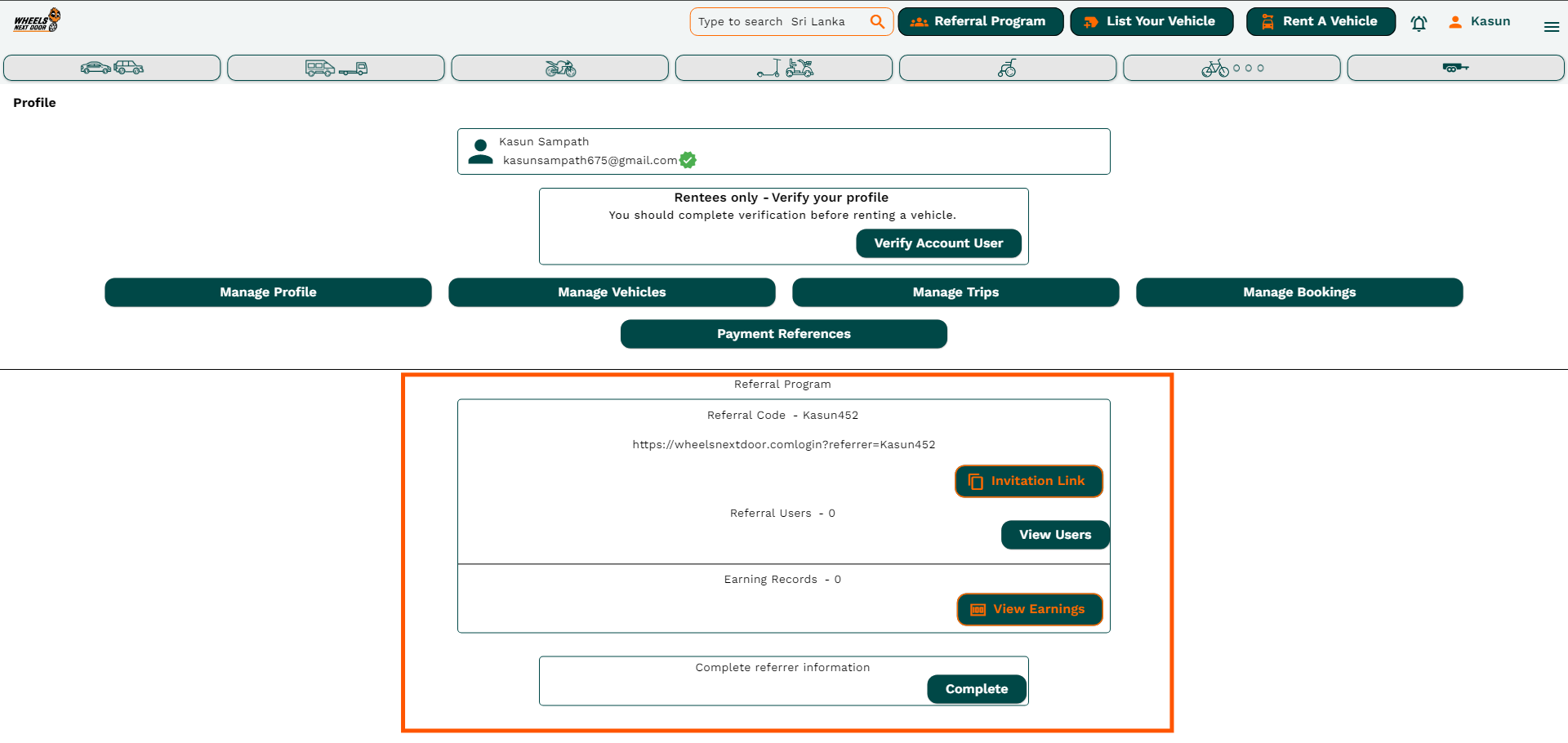
- Scroll down to see referral program section.
- You can see invitation link button in there. click on it to copy the URL. and send it via to your friends.
¶ NAVIGATE TO THE APP SETTINGS
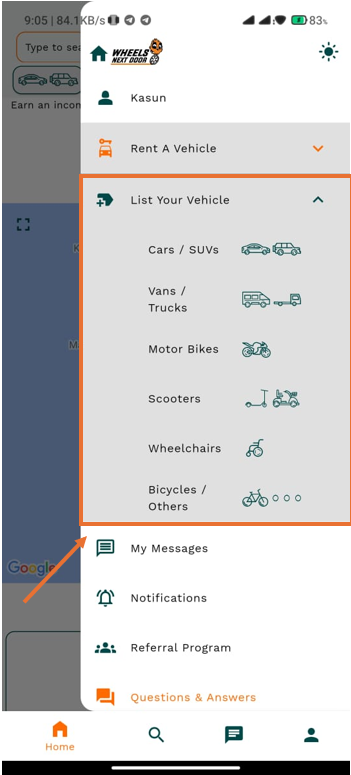
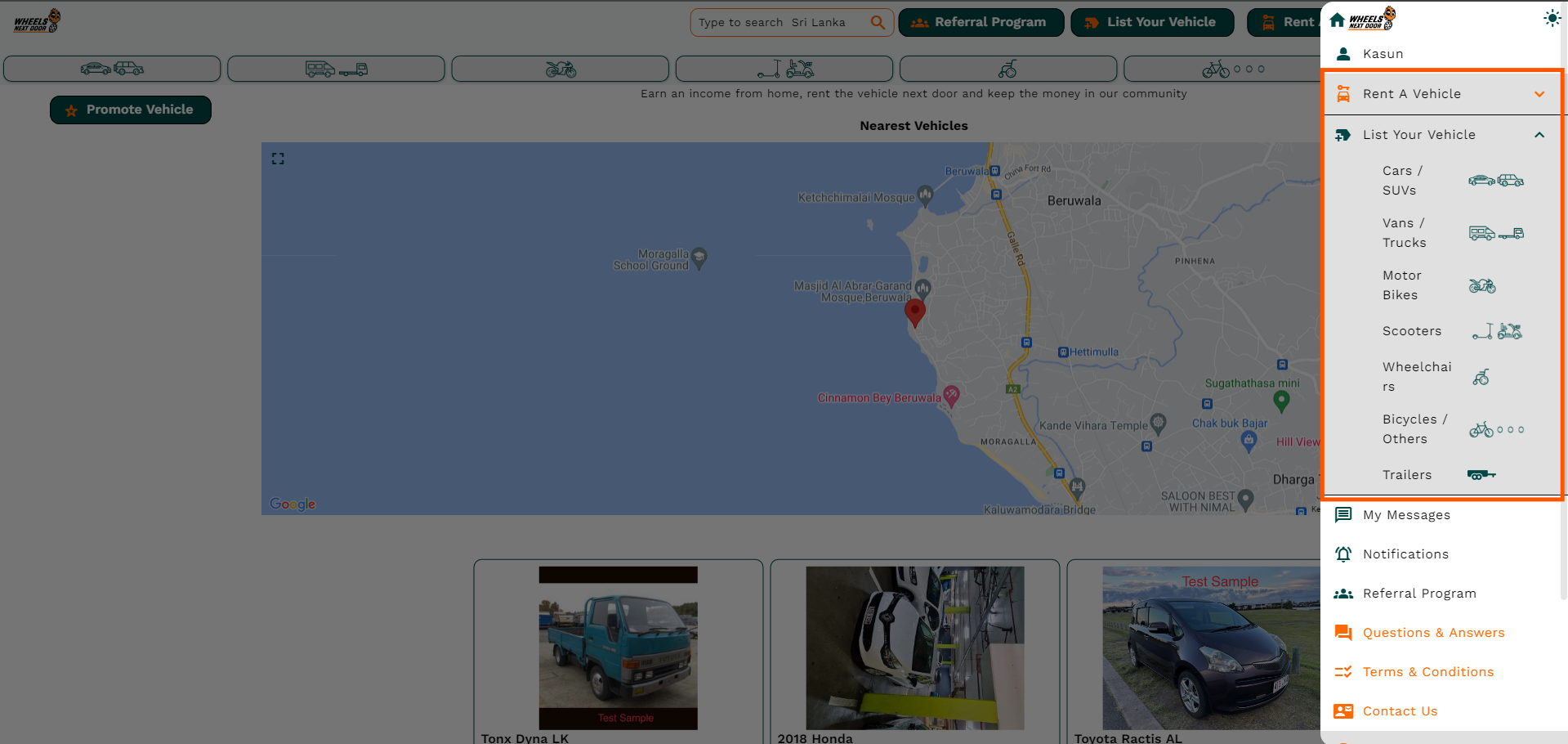
- The 3 bars in the top right corner will appear and you can click on that.
- Now you can see List Your Vehicles icon there and click on it.
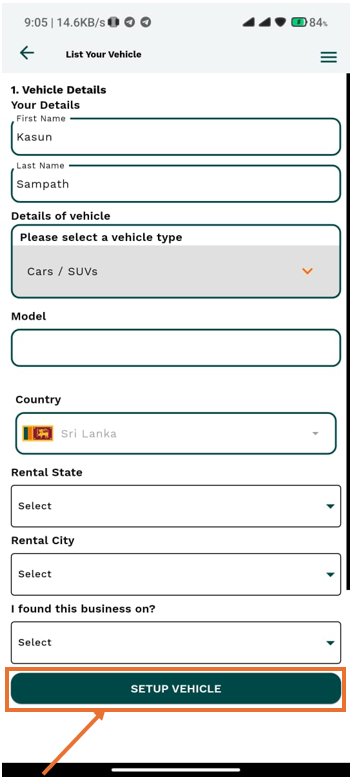
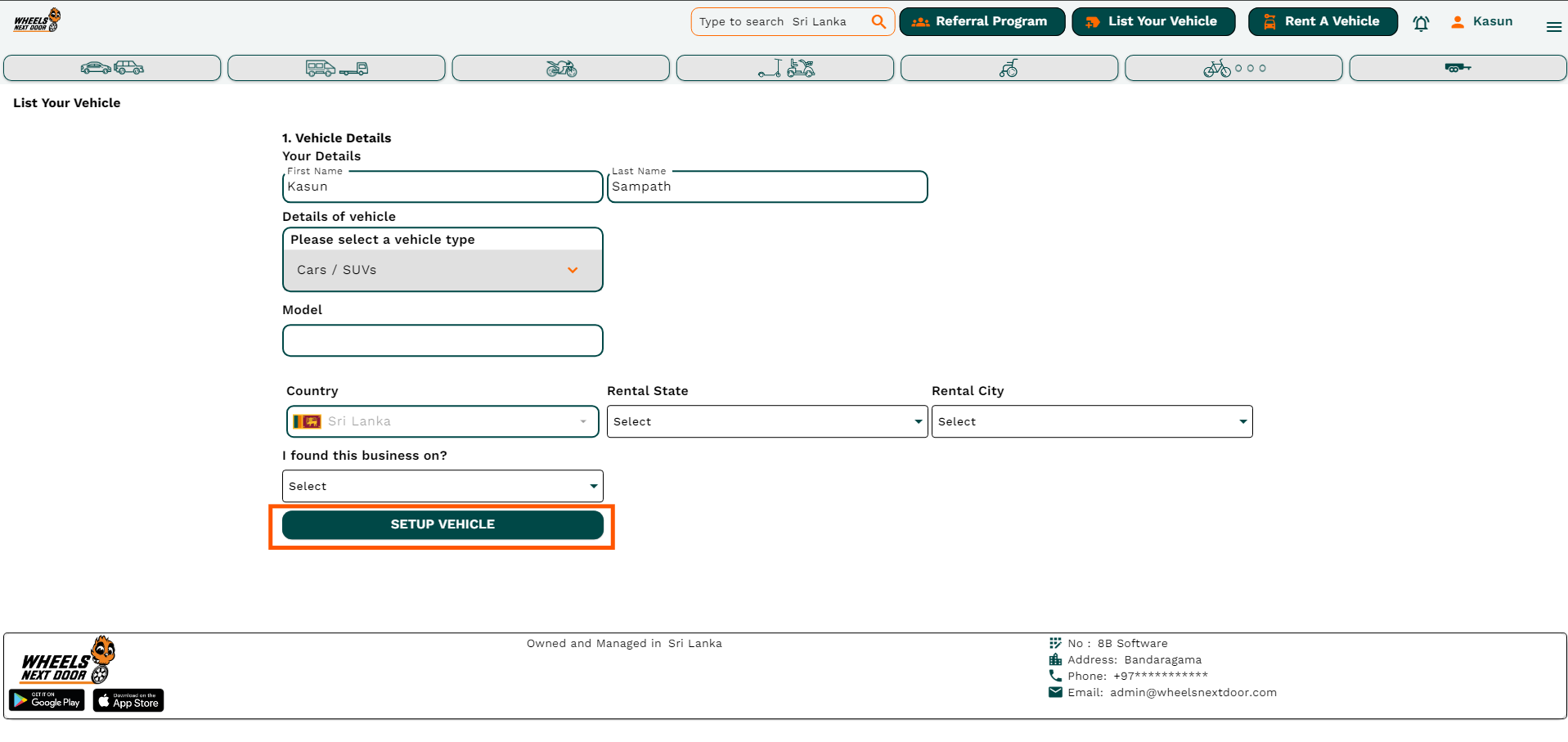
- Then you will be redirected to the List Your Vehicles page.
- Follow the given instructions and fill necessary details there according to your requirement.
- Click on setup vehicle button to list your vehicle.
¶ NAVIGATE TO THE APP SETTINGS
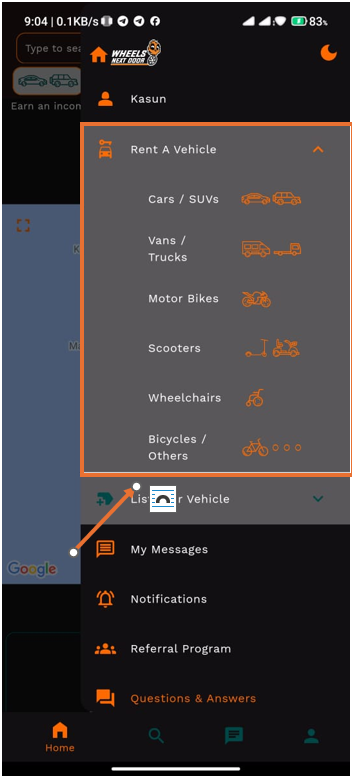
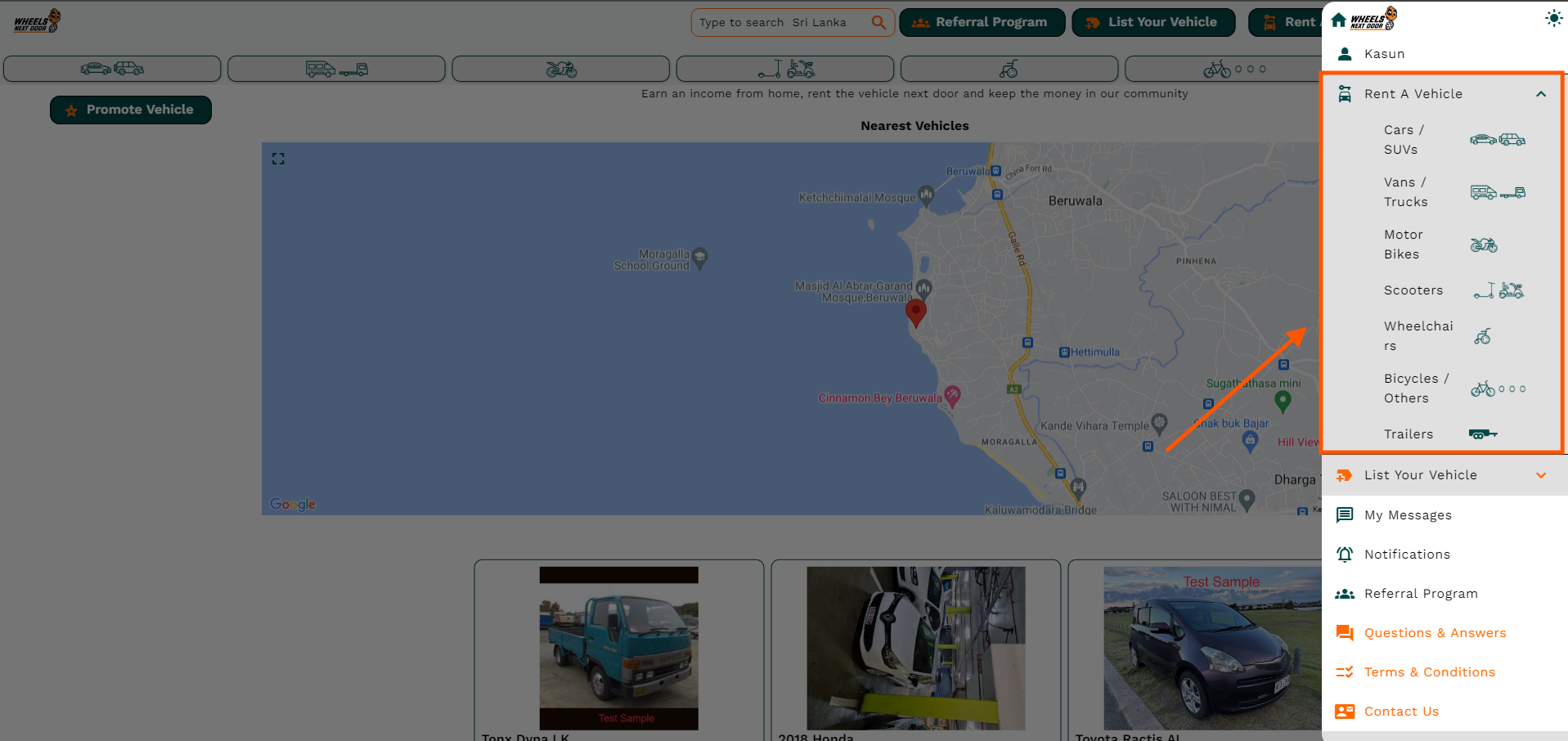
- The 3 bars in the top right corner will appear and you can click on that.
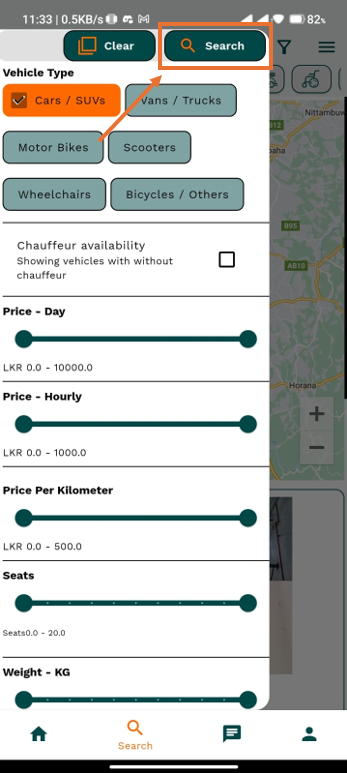
- Now you can see Rent a Vehicle icon there and click on it. It will expand and the vehicle category will appear. After that select on icon related to your finding vehicle
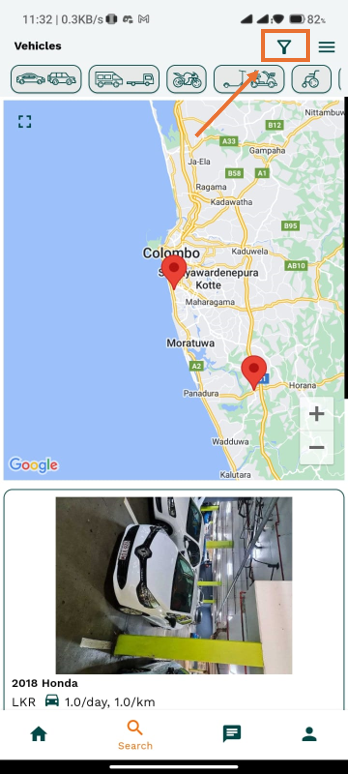
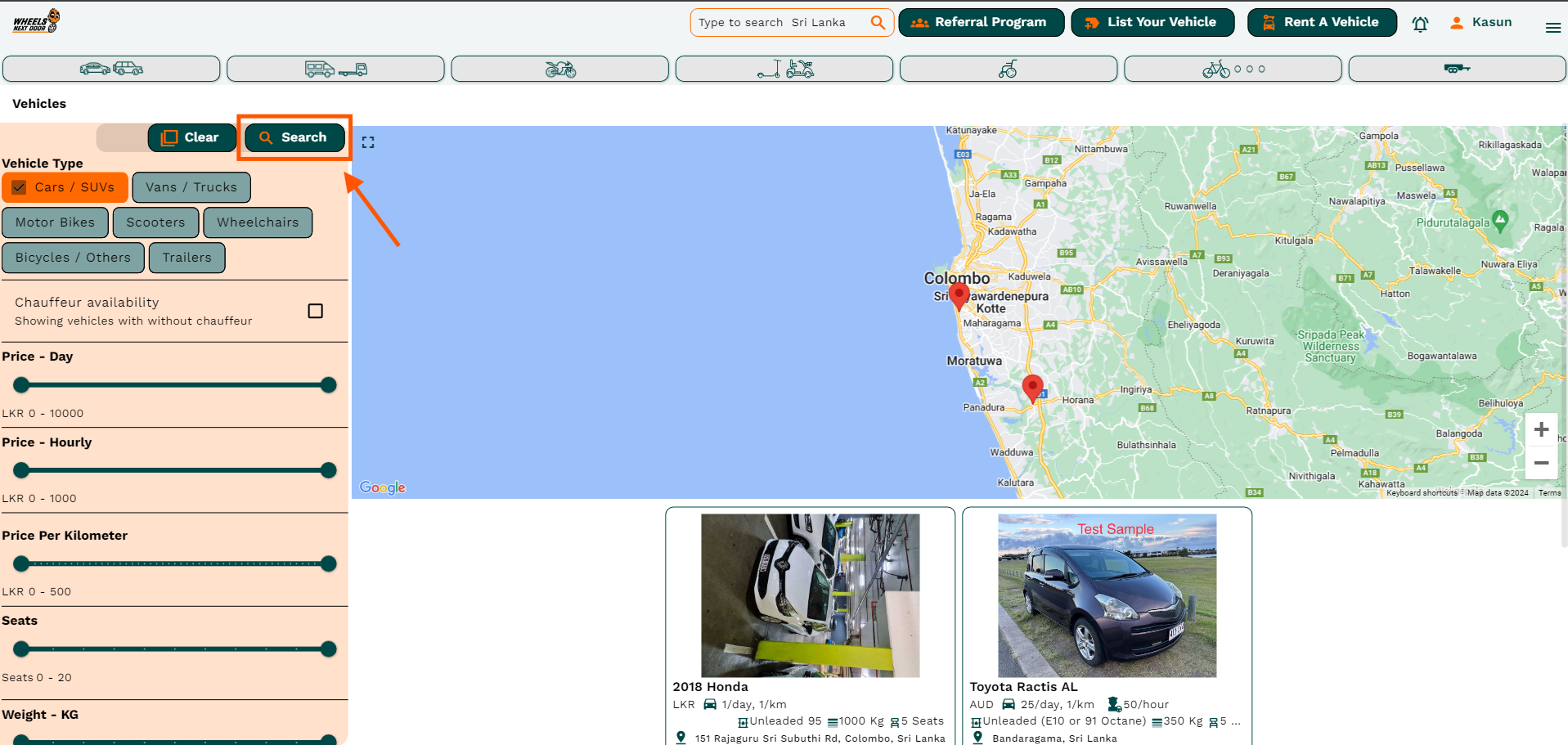
- Then you will be redirected to the Vehicles page.
- Click on search button to filter vehicles.
¶ NAVIGATE TO THE APP SETTINGS
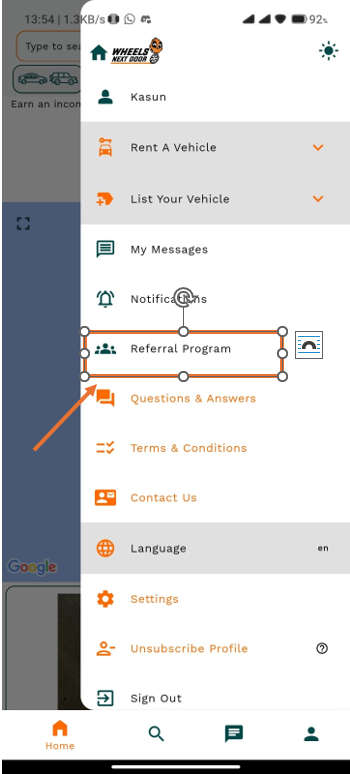
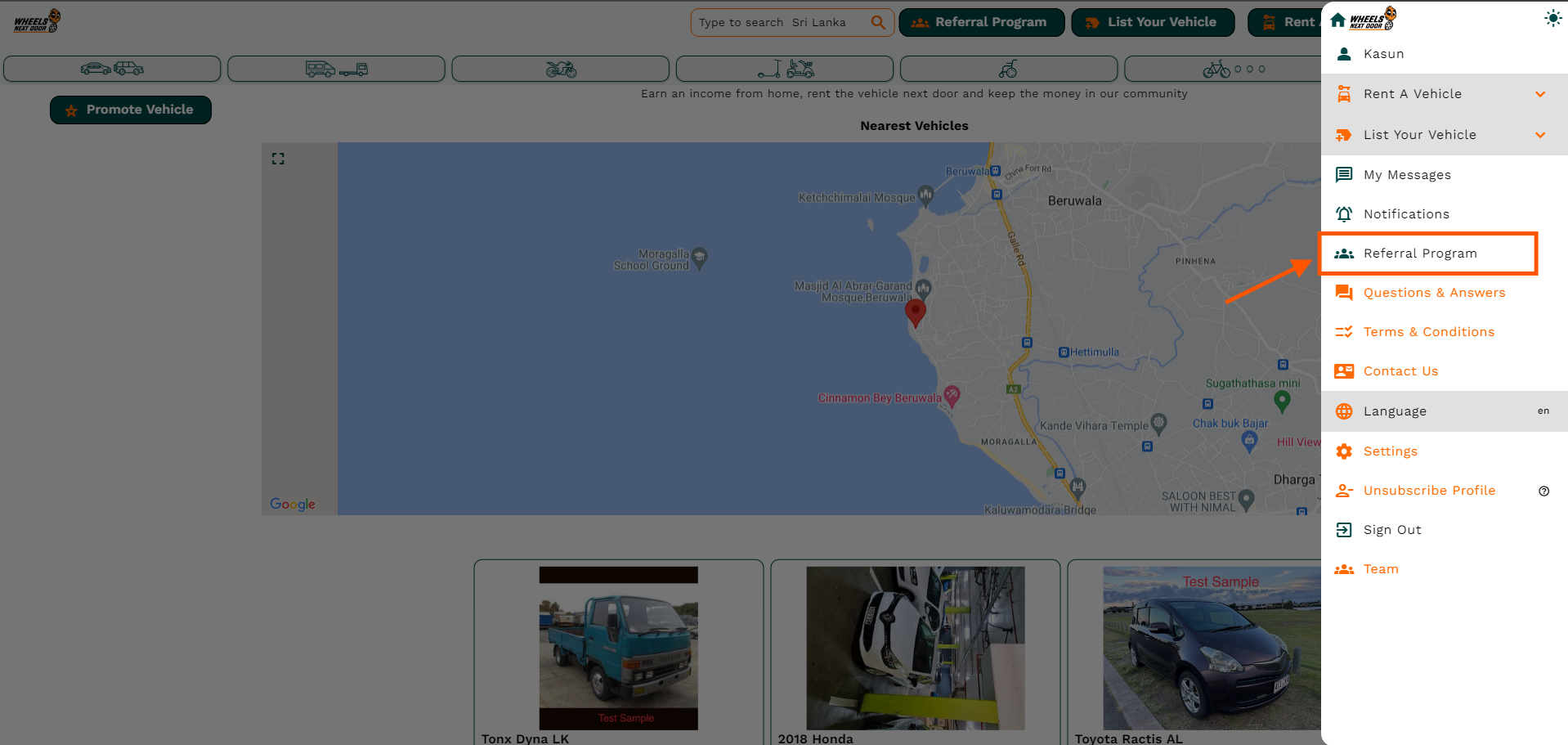
- The 3 bars in the top right corner will appear and you can click on that.
- Now you can see Referral Programe icon there and click on it.
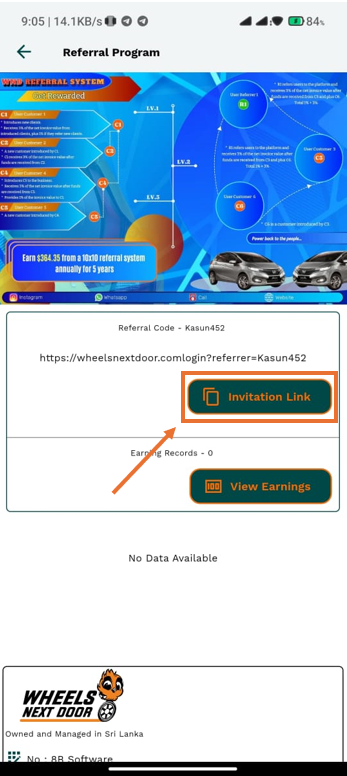
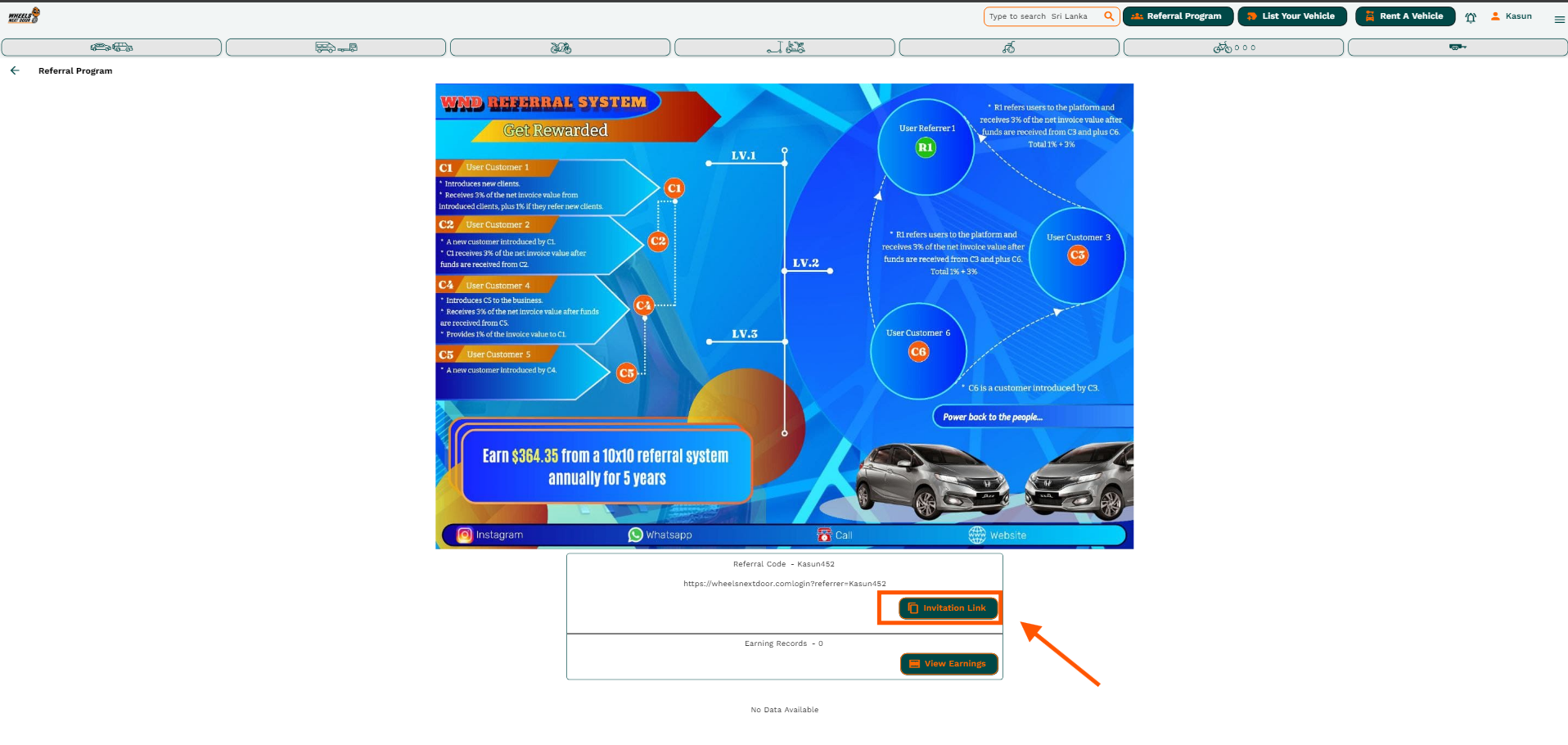
- Then you will be redirected to the Referral Programe page.
- You can see invitation link button in there. click on it to copy the URL. and send it via to your friends.